Deep Research FAQ
What should I do if Deep Research is stuck or has not produced a result?
Deep Research performs extensive web retrieval, source verification, and reasoning. If the page does not refresh promptly, it does not necessarily mean the task has stopped. You can try the following:
- Refresh the browser page;
- Temporarily leave the current conversation (this will not affect task execution);
- Return later to check the result. The task will continue running in the background.
If there is still no result after refreshing, check that your network connection is stable, then wait a little longer.
Deep Research usually takes 10–25 minutes. You may leave the page while it is running. The task will run asynchronously in the background, and you will receive a notification when it is complete. If the page looks abnormal, refresh it. Do not click “Stop generating”.
What if the search or reasoning goes in the wrong direction?
In very rare cases, we have found that Deep Research may search in a direction that deviates from the research topic.
If Deep Research’s search direction or reasoning conclusion is clearly off track, click the “👎” button at the bottom of the page right away. In the pop-up window, briefly describe the “issue type + specific deviation” (for example: search deviated from the topic / conclusion is inconsistent with the facts). The platform will complete the review within 1–3 business days. If the issue is confirmed, the credits consumed by this task will be automatically refunded.
How to reduce directional deviations:
- Narrow the scope: Specify the time range, geographic scope, and source types to avoid an overly broad question;
- Make good use of Clarification: After you submit a question, Kimi will ask for Clarification. Use this step to clearly state what you do not want covered and add the dimensions that need special attention;
- Keep your input concise: If your input during Clarification is too long, unclear, or drifts away from the original question, the research direction may go off track.
What is the context length for Deep Research?
Kimi-Researcher has a context length of 128K tokens (about 60,000–100,000 Chinese characters). This refers to the maximum number of tokens the model can process in a single run, including both input and output. This means it can refer to a large amount of text in one research task, enough to support complex and in-depth research analysis. Note, however, that the maximum length of generated content is usually much smaller than the context window.
| Concept | Meaning | Notes |
|---|---|---|
| Context window | The maximum token limit supported by the model | 128K tokens, including input and output |
| Input limit | The length of reference materials + instructions that can be sent at one time | Recommended to keep it within 100K tokens |
| Output limit | The maximum length the model can generate in one response | Usually about 8K–16K tokens, far smaller than the context window |
Common misconception: a 128K context does not mean the model can output 128K of content in one go. Output length is usually 1/8 to 1/16 of the context window.
Why does the output sometimes stop before it is finished? When a research report is too long, the model may truncate the response on its own (stop after reaching the single-output limit), suggest continuing, or output it in sections. This is not a malfunction; it is the normal behavior of the output limit. If the report is not complete, simply reply “continue” or “please finish the remaining sections”. For complex research, we recommend asking it to generate the report chapter by chapter.
Usage tips: Place key information at both the beginning and the end of your prompt to avoid the “Lost in the Middle” effect; summarize very long reference materials first instead of pasting the full text; start a new conversation or summarize the current one in a timely manner during multi-turn conversations; if the topic is too broad, split it into multiple sub-questions and research them separately.
Why were credits deducted even though the task was not completed?
Deep Research also distinguishes between “regular chat” and “task execution”. Once you select the “Deep Research” task, billing is based on the task type.
- Billing method: Credits are deducted based on the actual tokens consumed by the task. Deep Research shares one credit pool with other membership features, including Kimi Code.
- Refund for task failure: If task execution fails and no valid result is returned, no token consumption will be deducted.
You can view the token credit usage of your current membership account under “Me → Manage → Subscription”.
If you need further assistance, contact our staff through the in-product “👎” feedback channel, or email [email protected].
Why were credits deducted after I stopped the task manually?
Once Deep Research starts, the system calls compute resources for retrieval, verification, and reasoning. These resources have already been reserved, so clicking “Stop” manually or closing the page is considered credit consumption.
If the page has not updated for a long time, we recommend refreshing the browser first or checking again later, so you do not interrupt the task because you mistakenly think it is stuck. Deep Research usually takes 10–25 minutes. You may leave the page while it is running. The task will run asynchronously in the background, and you will receive a notification when it is complete.
Why can’t I download or save a Deep Research report?
Deep Research generates two types of reports, both of which can be saved.
Text research report
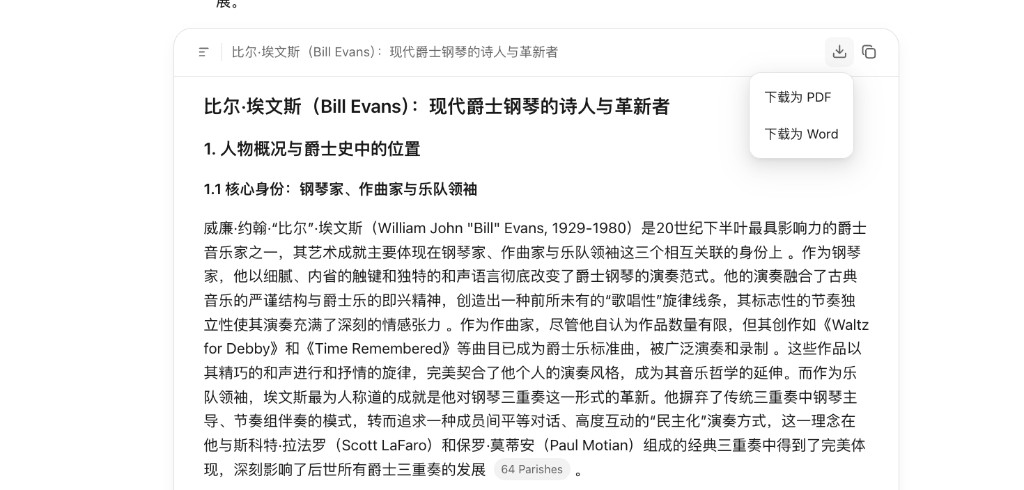
Click the “Download” or “Copy” button in the upper-right corner to save the report locally or paste it elsewhere. Reports can be exported in PDF or Word format.
Visual report
Click “Preview” → “Share” → “Copy link” → open it in your browser → right-click and choose “Save as” to save it in formats such as HTML or PDF. Visual reports also support:
- Preview: Click “Preview” to switch between web and mobile views;
- Copy HTML source code: Click preview, switch to “Code mode”, and copy and paste the source code of the visual report;
- Public sharing: Click share to obtain a public sharing link.