Welcome to Kimi Claw Android. This guide shows you how to deploy OpenClaw on an Android phone and turn an idle device into your 24/7 online AI remote assistant. You can remotely control the phone, use apps, connect smart home devices, and build a personalized assistant of your own through chat apps such as Kimi, Feishu, and WeChat.
• We recommend deploying Kimi Claw Android on an idle phone to avoid conflicts with your daily use.
• Do not manually upgrade OpenClaw. Official adapted versions will be delivered through version update pushes.
Use Control (Command) + F to quickly find error messages or keywords.
About Kimi Claw Android
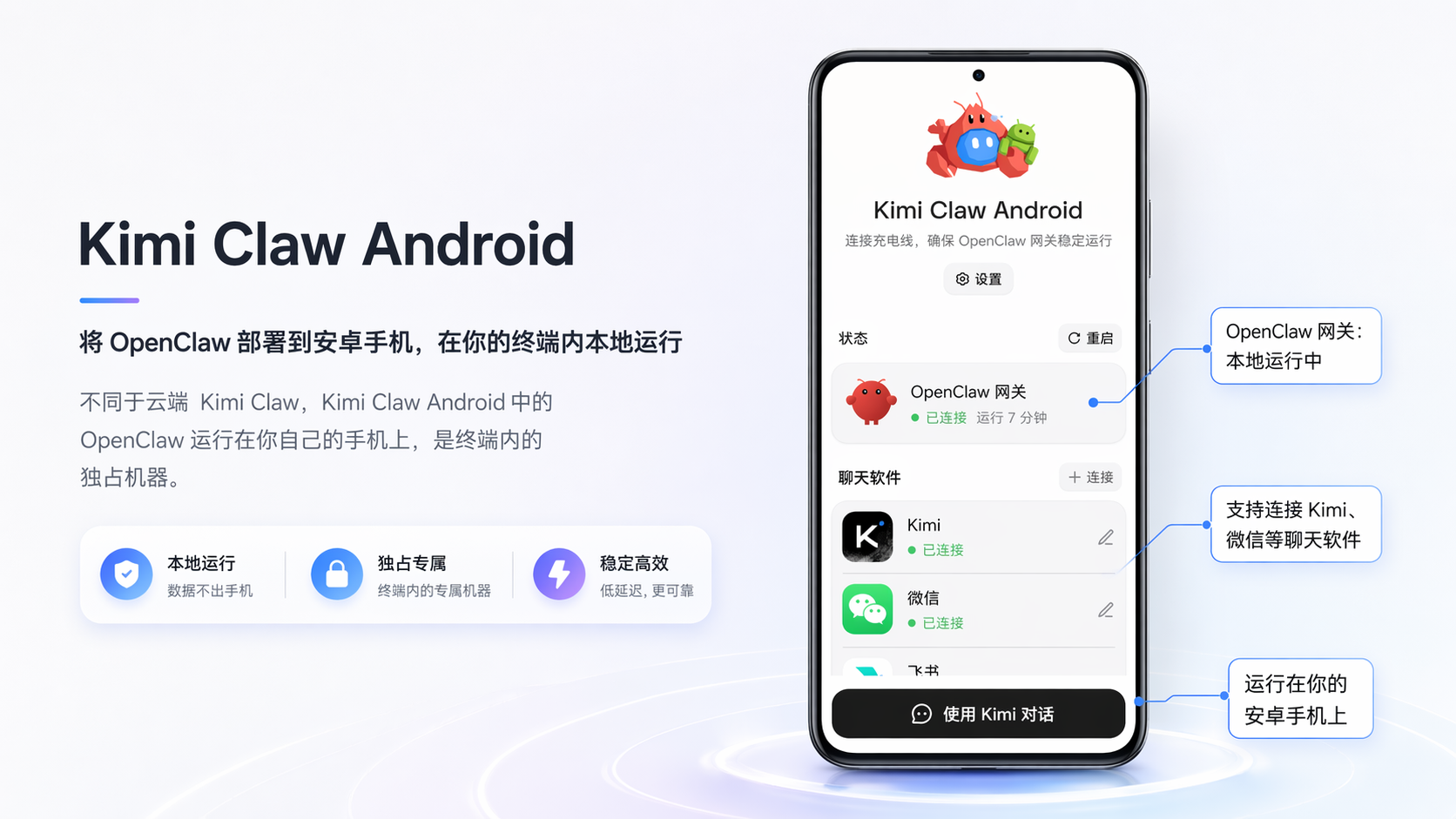
Kimi Claw Android is an app that deploys OpenClaw on an Android phone. Unlike cloud-based Kimi Claw, OpenClaw in Kimi Claw Android does not run on a cloud virtual machine. It runs on your own phone as a dedicated machine inside your terminal.
System requirements
| Item | Requirement |
|---|---|
| Operating system | Android 8.0 or later |
| Available storage | At least 5GB |
| Network | A stable network connection is required |
| Account | Kimi Allegretto subscription or above |
We recommend using an idle phone to avoid conflicts with daily use.
Download and installation
Download Kimi Claw Android
You can download it in the following ways:
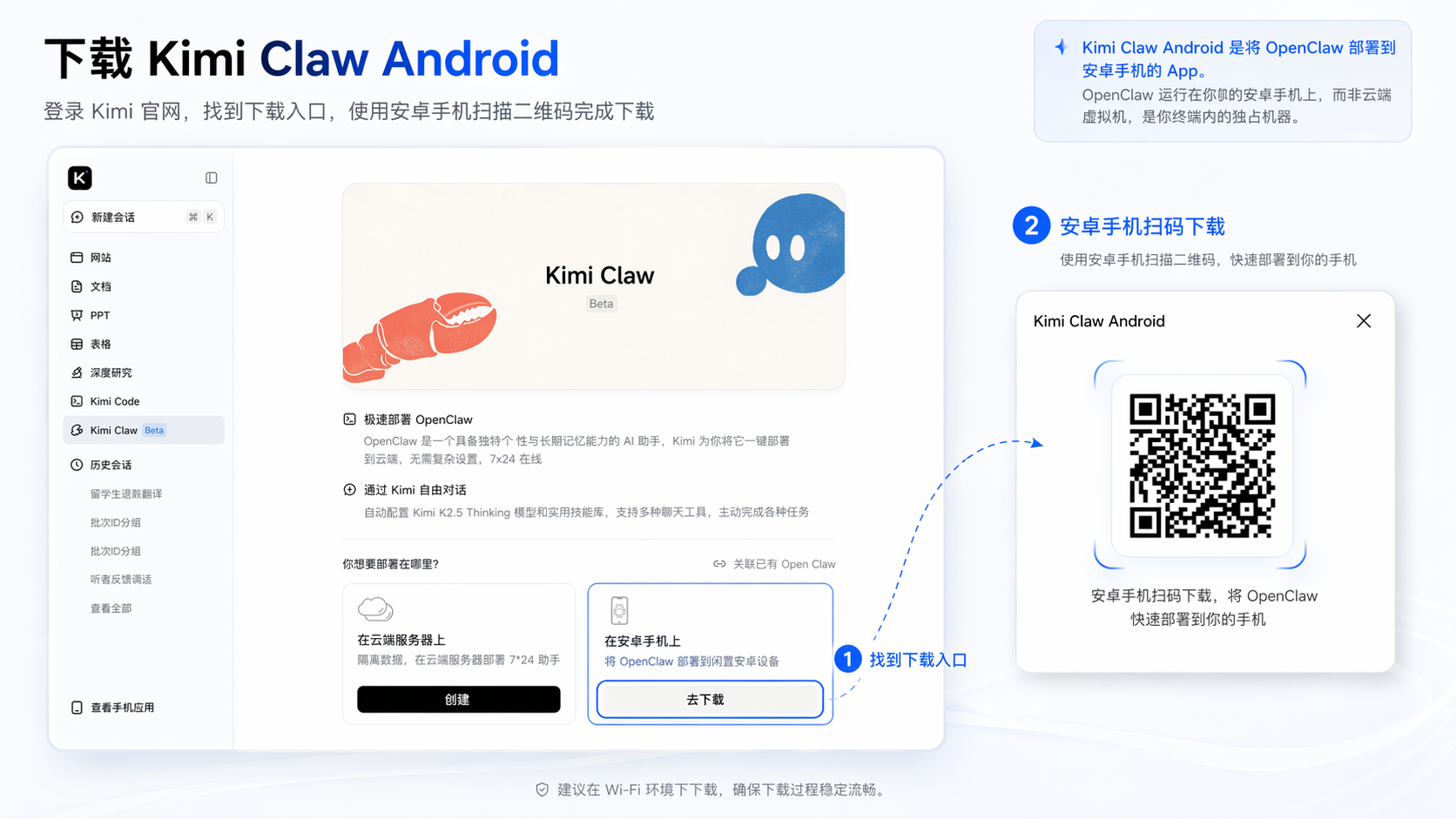
Method 1: Scan the QR code on the website
Log in to the Kimi official website, find the entry for “Download Kimi Claw Android,” and scan the QR code on the page with your Android phone to download it.
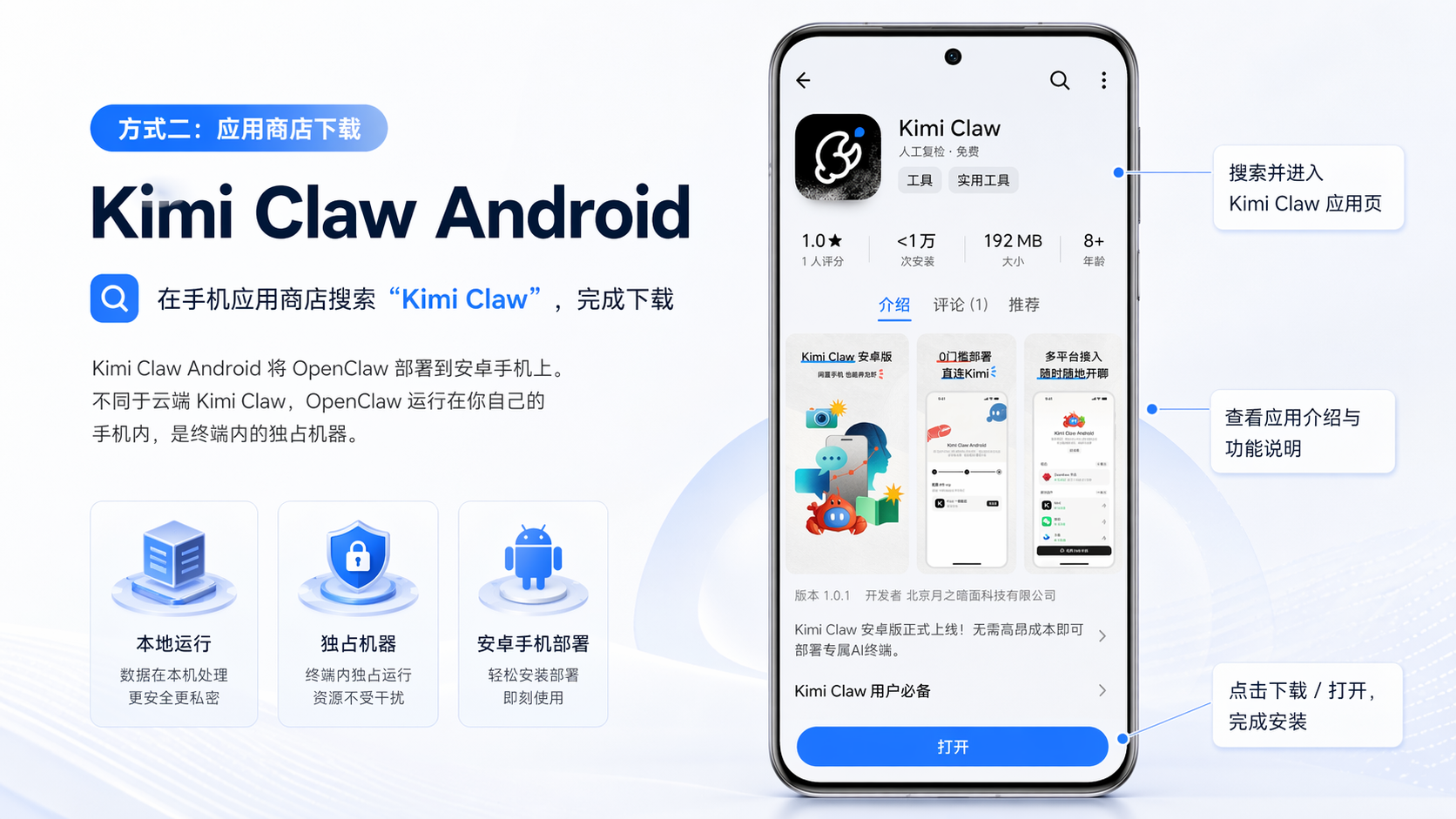
Method 2: Download directly from your phone’s app store
Search for "Kimi Claw" in your phone’s app store and complete the download.
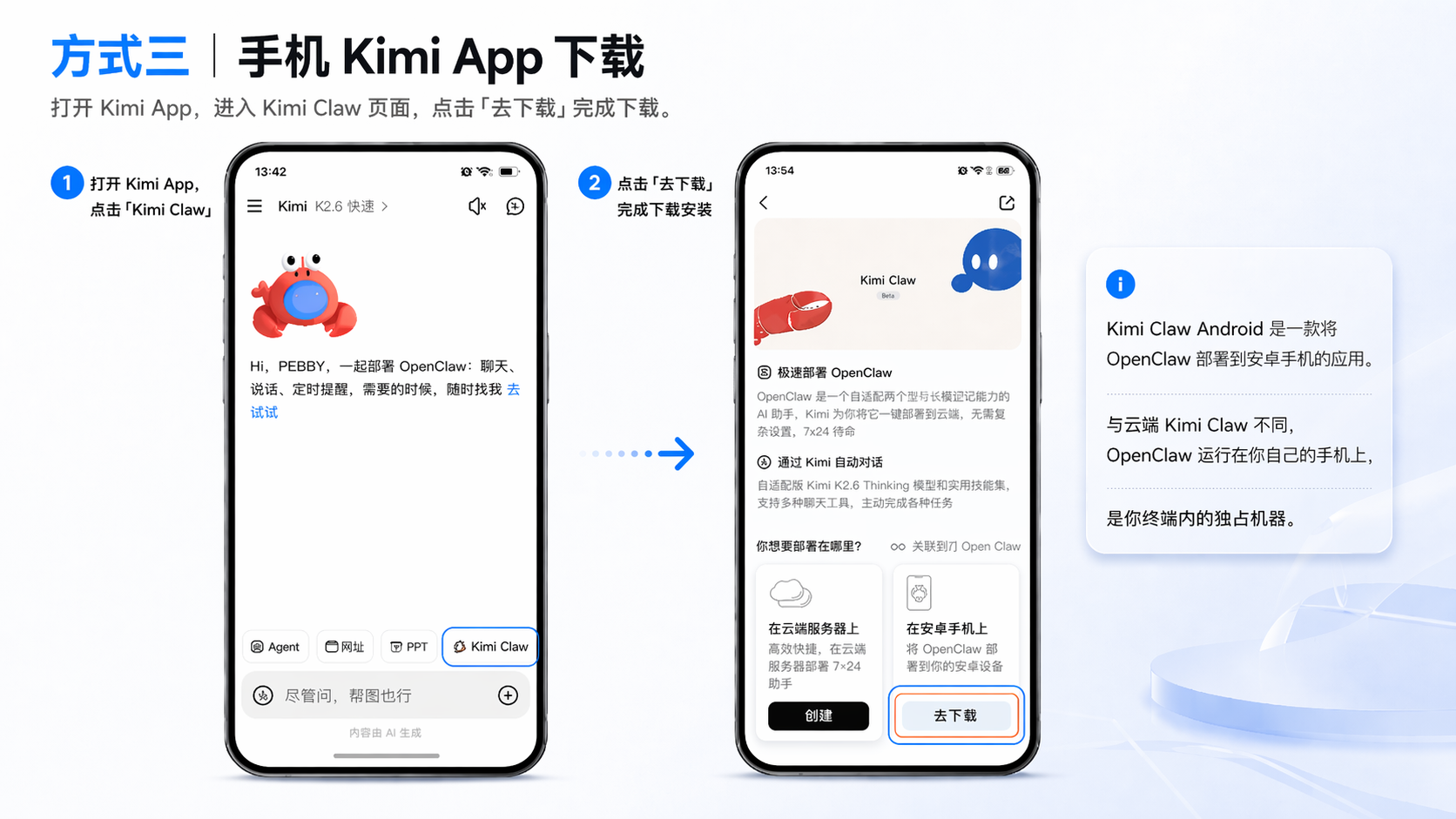
Method 3: Download from the Kimi App
Open the Kimi App and tap Kimi Claw Android to download it.
Initial setup
When you open Kimi Claw Android for the first time, you will see the welcome page. After reading the following important information, tap “Start setup” to enter the setup flow.
- quickly deploy OpenClaw — Deploy OpenClaw to your local phone and communicate through Kimi, Feishu, and other channels
- Use an idle phone — Kimi Claw Android requires a stable network to run; an idle phone is recommended
- Use it safely — OpenClaw may involve privacy and security risks, so use it with caution
Select the checkbox to agree to the Privacy Agreement and User Agreement, then continue.
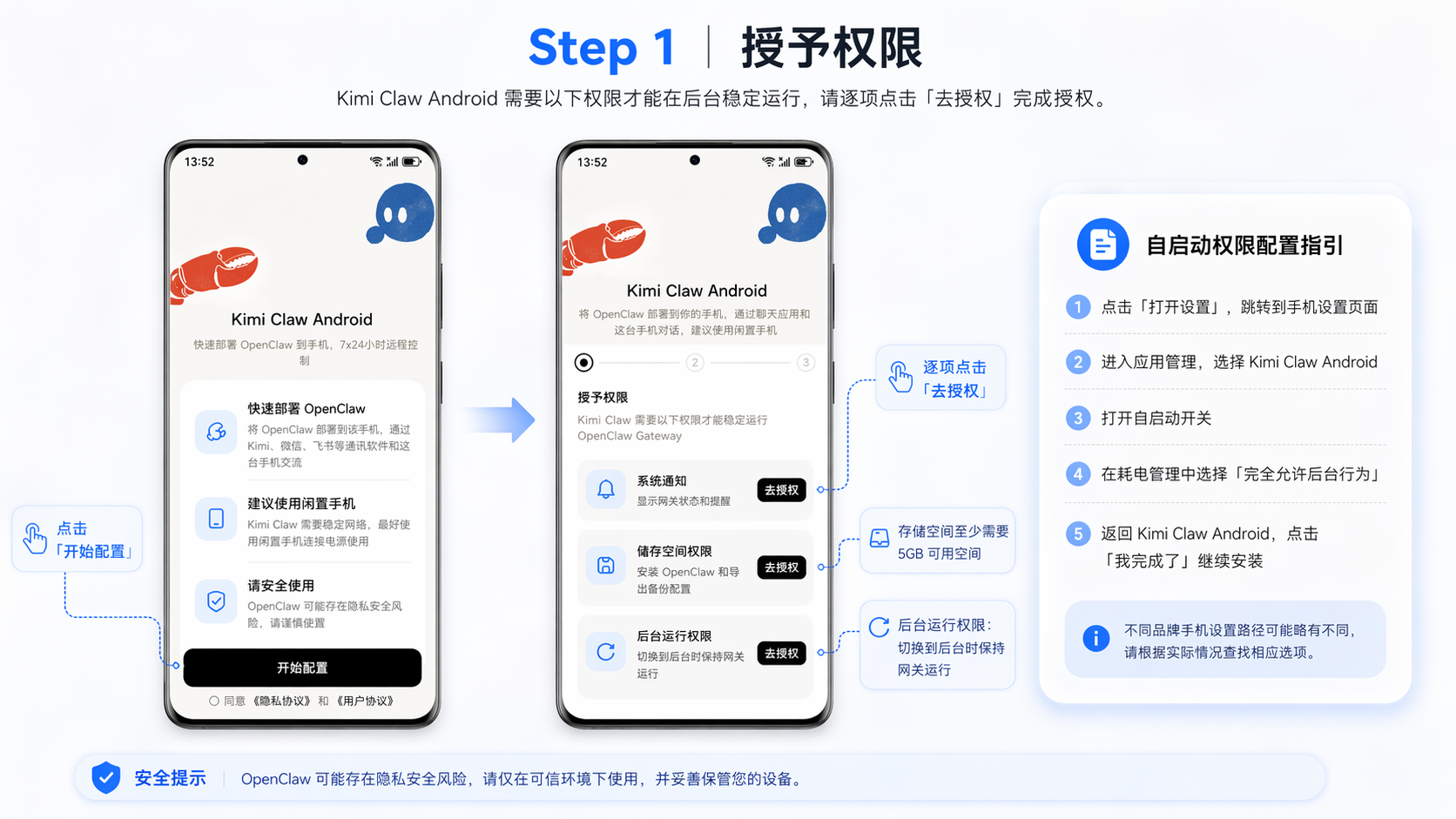
Step 1: Grant permissions
Kimi Claw Android needs the following permissions to run stably in the background. Tap “Authorize” for each item to complete authorization:
| Permission | Description | Action |
|---|---|---|
| System notifications | Display gateway status and reminders | Authorize |
| Storage permission | At least 5GB of available space is required | Clean up when space is insufficient |
| Background running permission | Keep the gateway running when switched to the background | Grant background running permission |
Auto-start permission guide:
Because settings paths vary by phone brand, here are the general steps:
- Tap “Open settings” to go to the phone settings page
- Enter the app management list and select Kimi Claw Android
- Turn on auto-start
- In power consumption management, select “Allow background behavior completely”
- Return to Kimi Claw Android and tap “I’m done” to continue installation
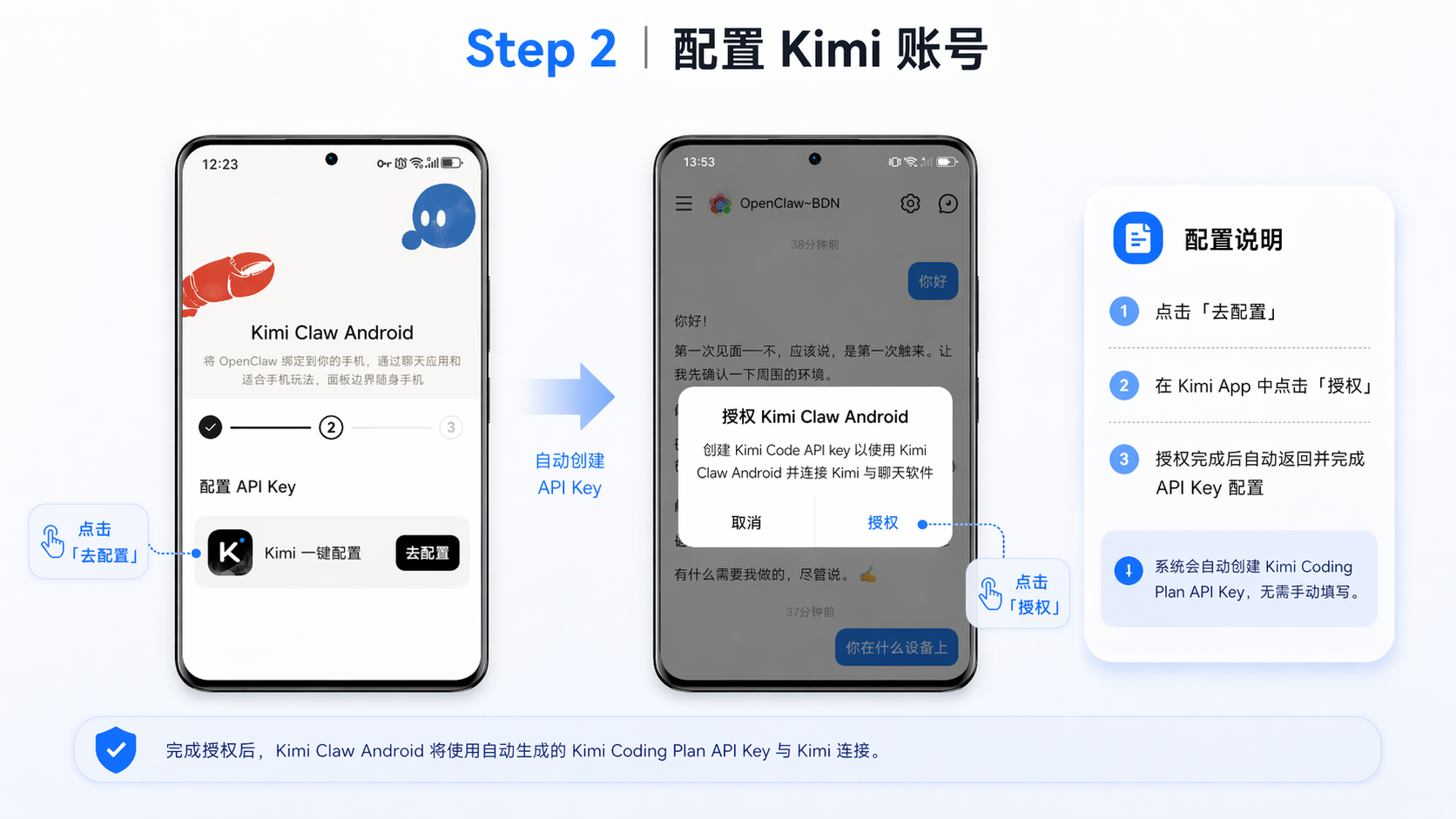
Step 2: Configure your Kimi account
Tap “Configure” to go to the Kimi App for authorization. After authorization, Kimi will automatically create a Kimi Coding Plan API Key for Kimi Claw Android.
If you are not subscribed, you need to activate membership benefits first. Tap “Upgrade subscription” to subscribe. Kimi Claw Android requires Allegretto level to activate.
Step 3: Install OpenClaw
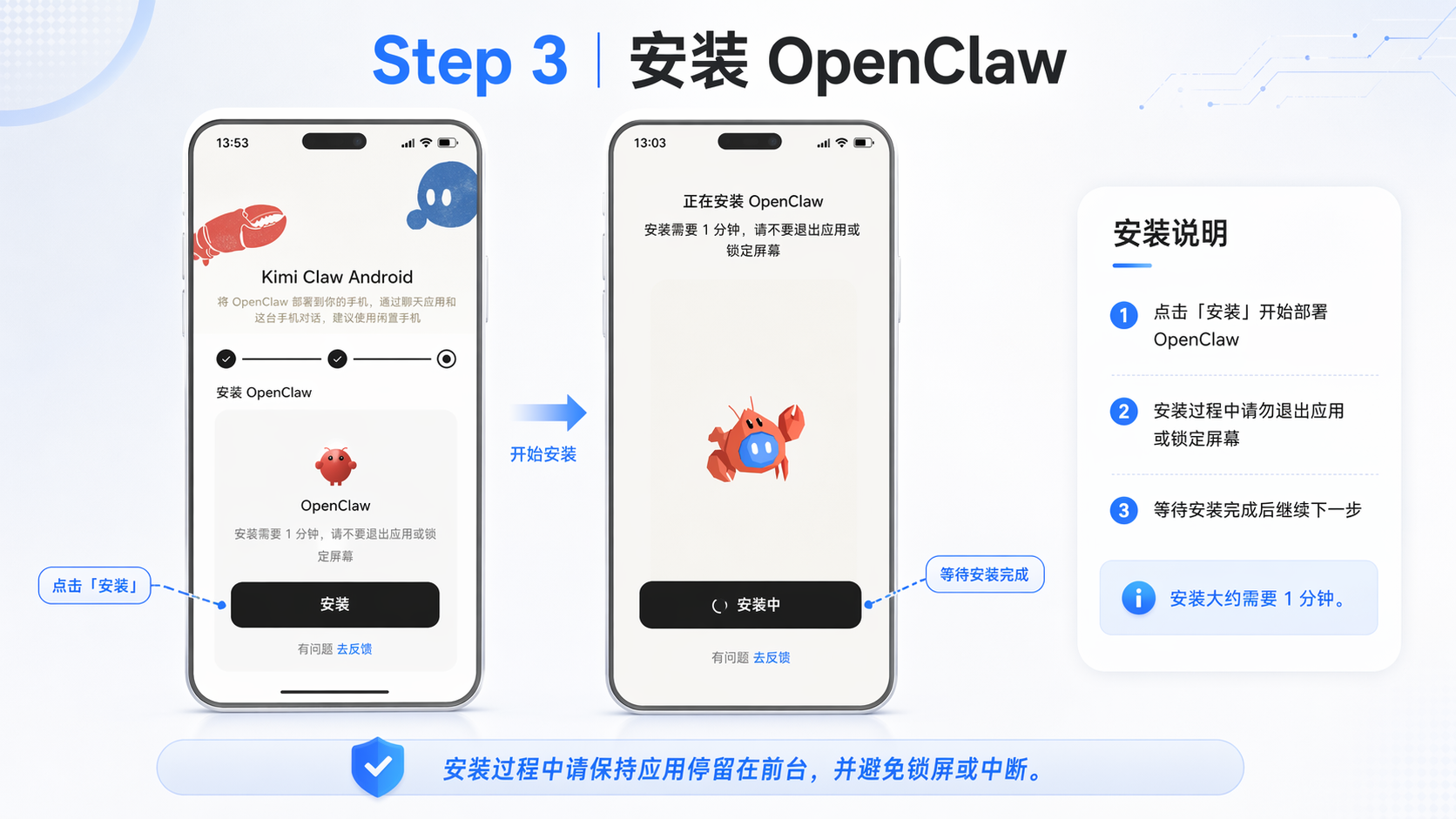
If installation fails, tap “Reinstall” to try again. If it fails multiple times, tap “Having issues? Send feedback” to submit the issue.
Dashboard guide
Main screen
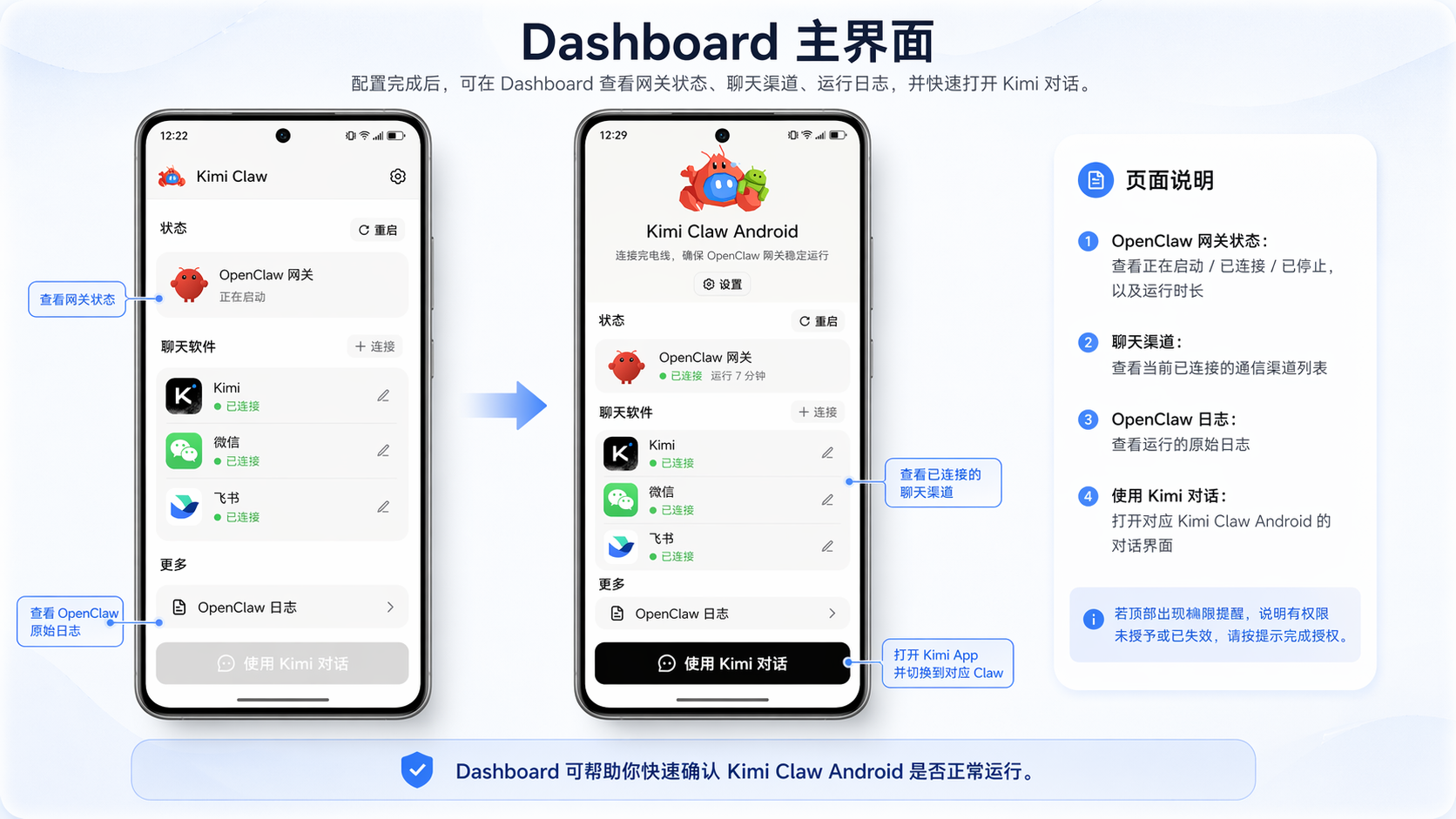
After setup is complete, you will enter the Dashboard main screen, where you can see the following information:
- OpenClaw Gateway status — Starting / Connected / Stopped, and runtime
- Chat channels — List of currently connected communication channels
- OpenClaw logs — Raw logs generated while OpenClaw is running
- Chat with Kimi — Open the Kimi App, open the conversation page for the corresponding Kimi Claw Android, and automatically switch to the corresponding Claw
If a permission reminder appears at the top of the Dashboard, it means some permissions have not been granted or have expired. Follow the prompts to grant them one by one to ensure Kimi Claw Android runs properly.
Chat channel management
In the Dashboard, you can manage all communication channels:
- View connected channels and their status, such as Kimi - Connected and Feishu - Connected
- Tap “+ Connect” to add a new chat channel
- Tap an existing channel to view details or delete it
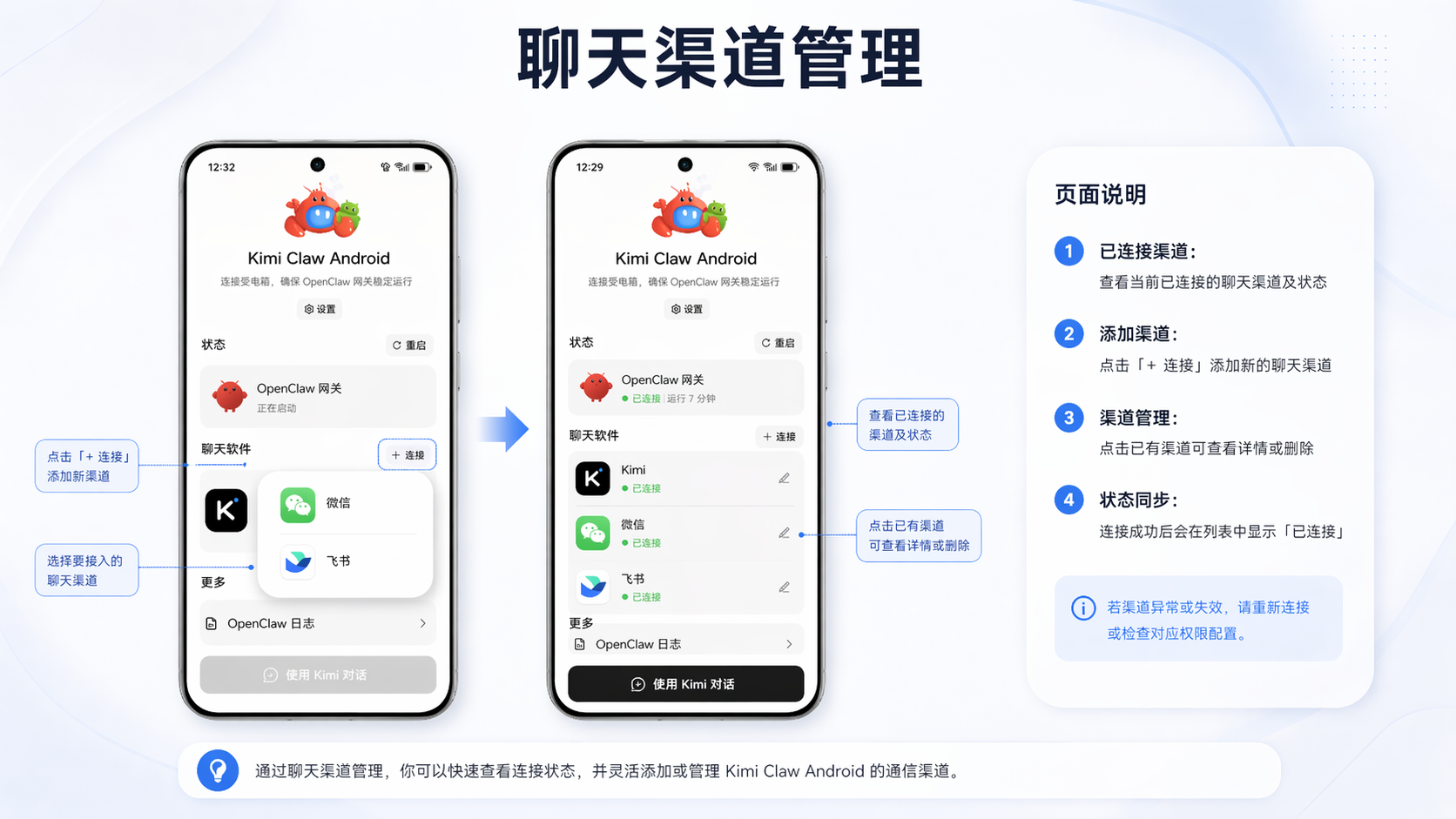
Keep at least one chat channel so that you can communicate with Kimi Claw Android properly.
Real-time logs
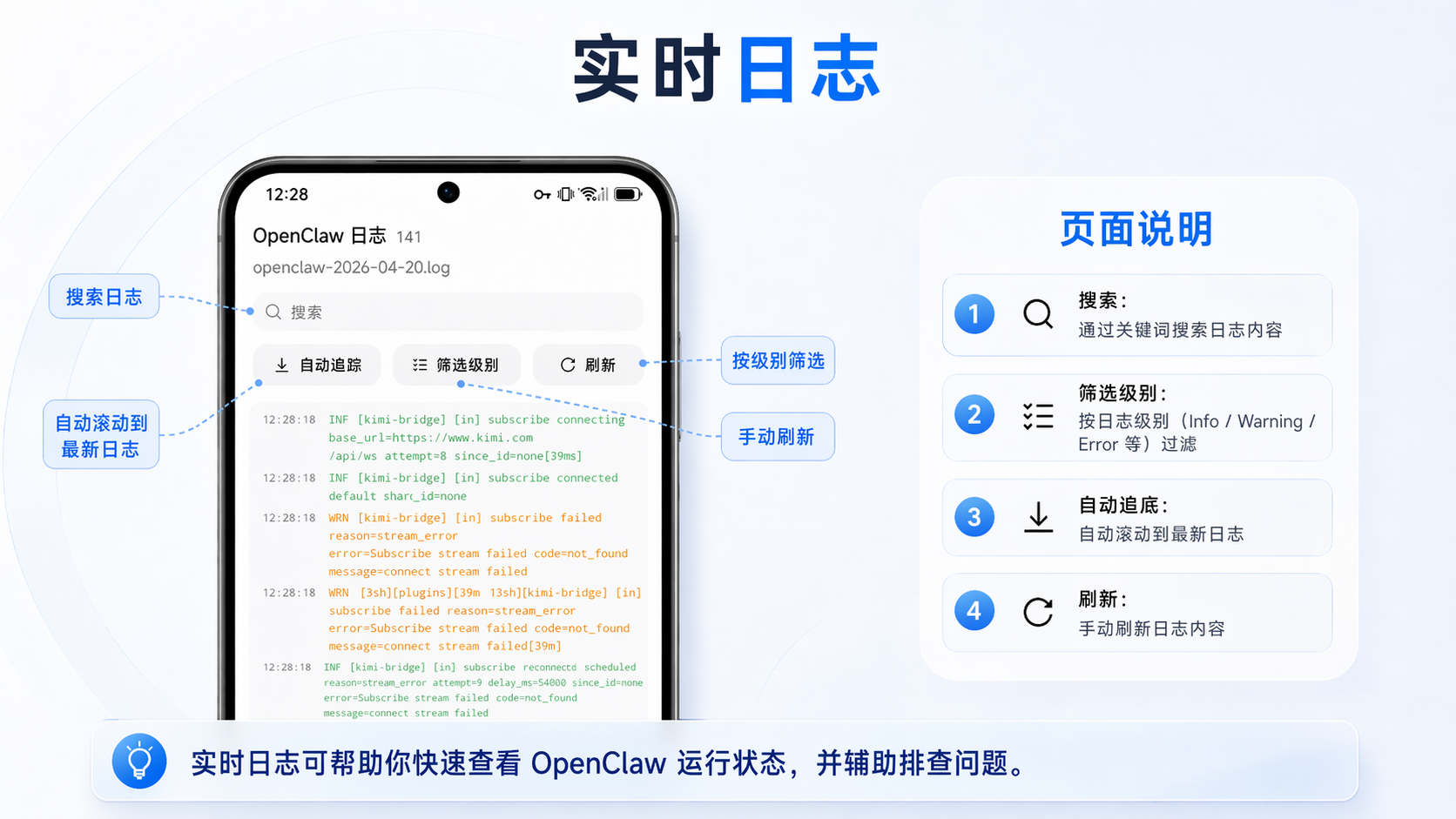
Real-time logs help you check OpenClaw’s running status and troubleshoot issues:
- Search — Search log content by keyword
- Filter by level — Filter by log level, such as Info / Warning / Error
- Auto-scroll to bottom — Automatically scroll to the latest logs
- Refresh — Manually refresh log content
Settings
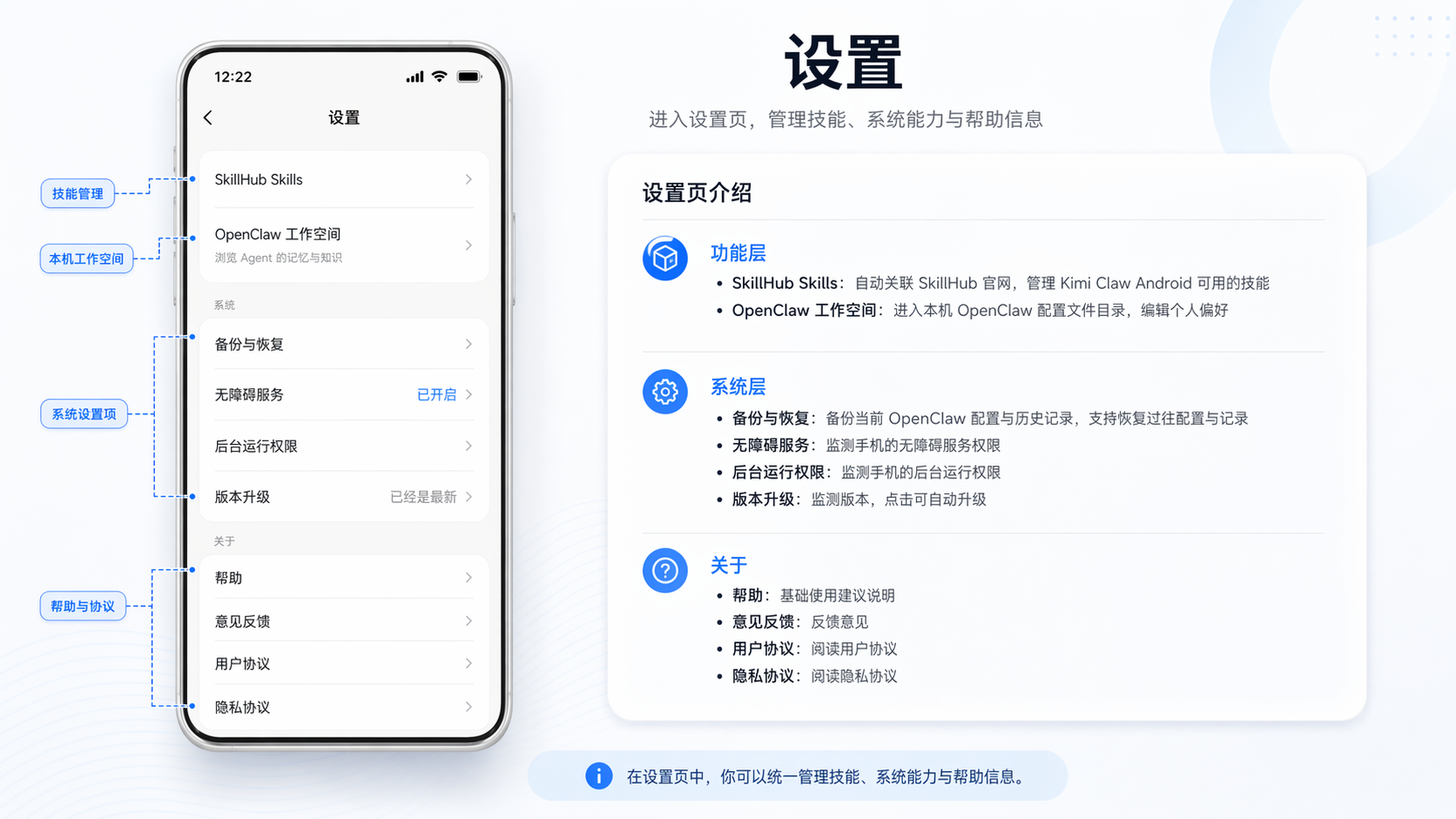
Tap “Settings” to enter the settings page:
Feature layer:
- SkillHub Skills: Automatically link to the SkillHub official website and manage skills available to Kimi Claw Android
- OpenClaw workspace: Enter the local OpenClaw configuration file directory and edit your personal preferences
System layer:
- Backup and restore: Back up current OpenClaw configurations and history, with support for restoring previous configurations and records
- Accessibility service: Monitor the phone’s accessibility service permission
- Background running permission: Monitor the phone’s background running permission
- Version upgrade: Check the version and tap to upgrade automatically
About:
- Help: Basic usage guidance
- Feedback: Send feedback
- User Agreement: Read the User Agreement
- Privacy Agreement: Read the Privacy Agreement
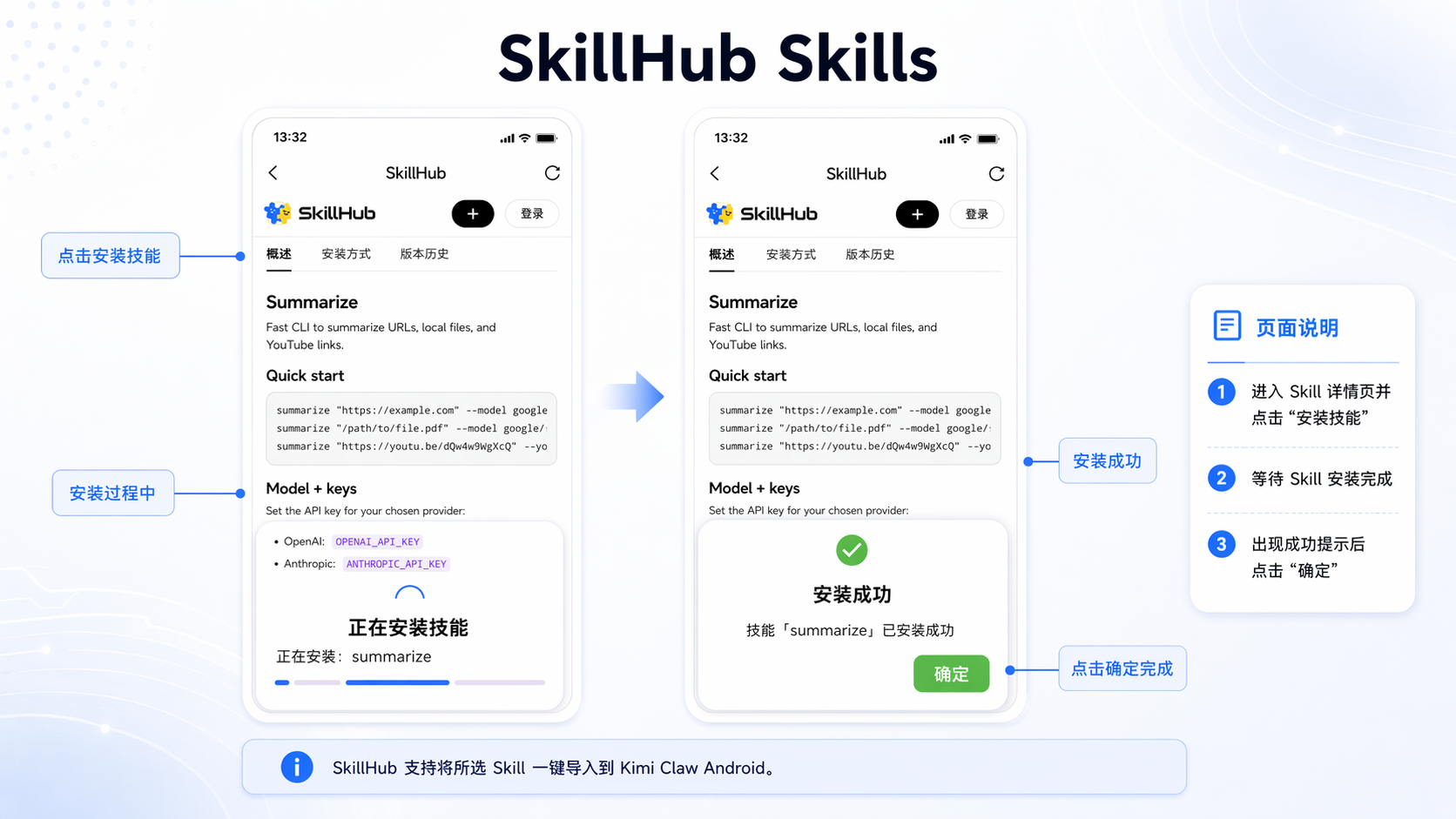
SkillHub Skills
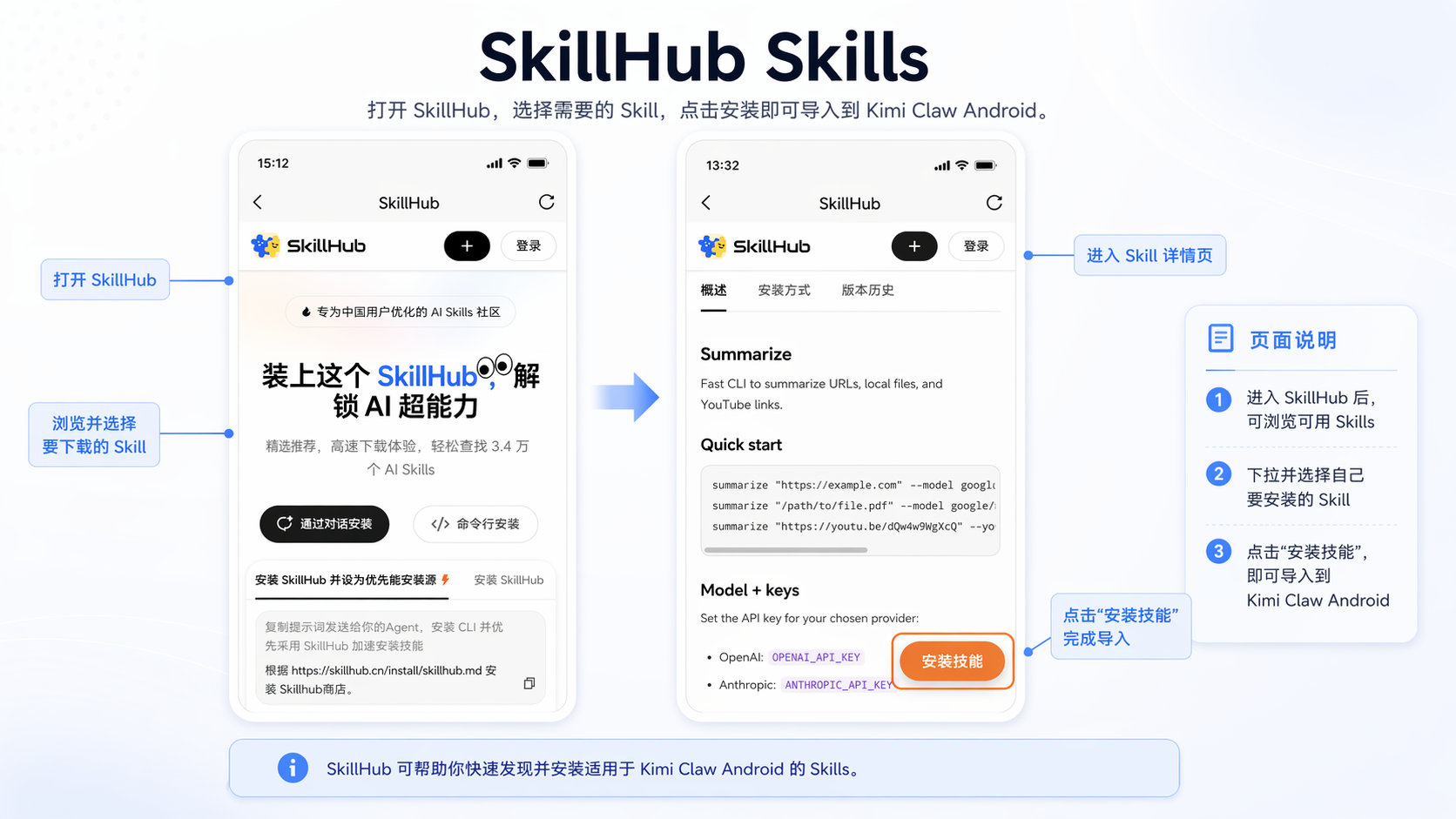
After opening it, you will be automatically redirected to SkillHub, where you can download a Skill to Kimi Claw Android with one tap. Select the Skill you want to download from the dropdown, open its page, and tap Install to import the Skill.
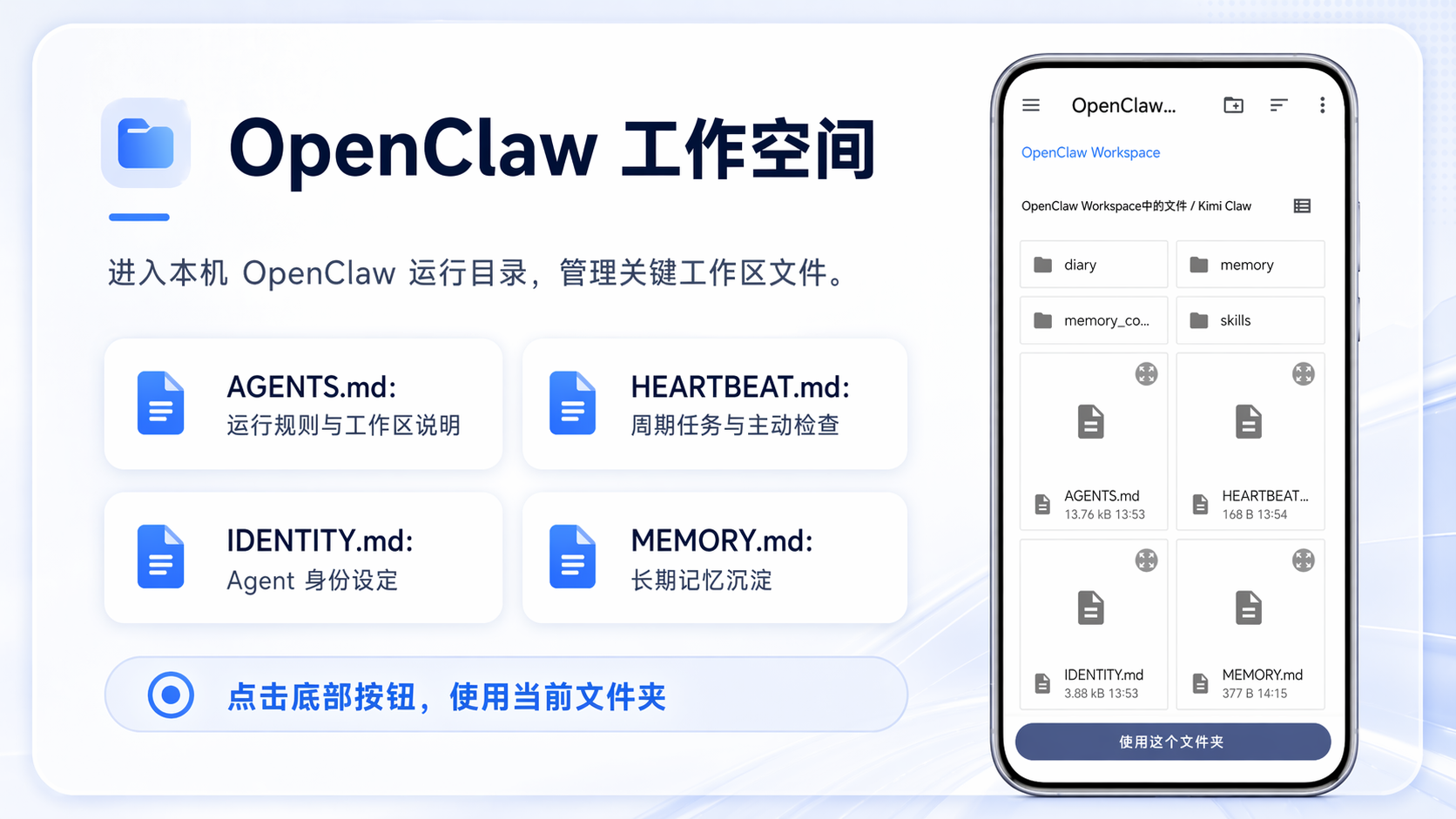
OpenClaw workspace
Open it to enter the local OpenClaw runtime directory, where you can define your personal AGENTS.md, HEARTBEAT.md, IDENTITY.md, and more.
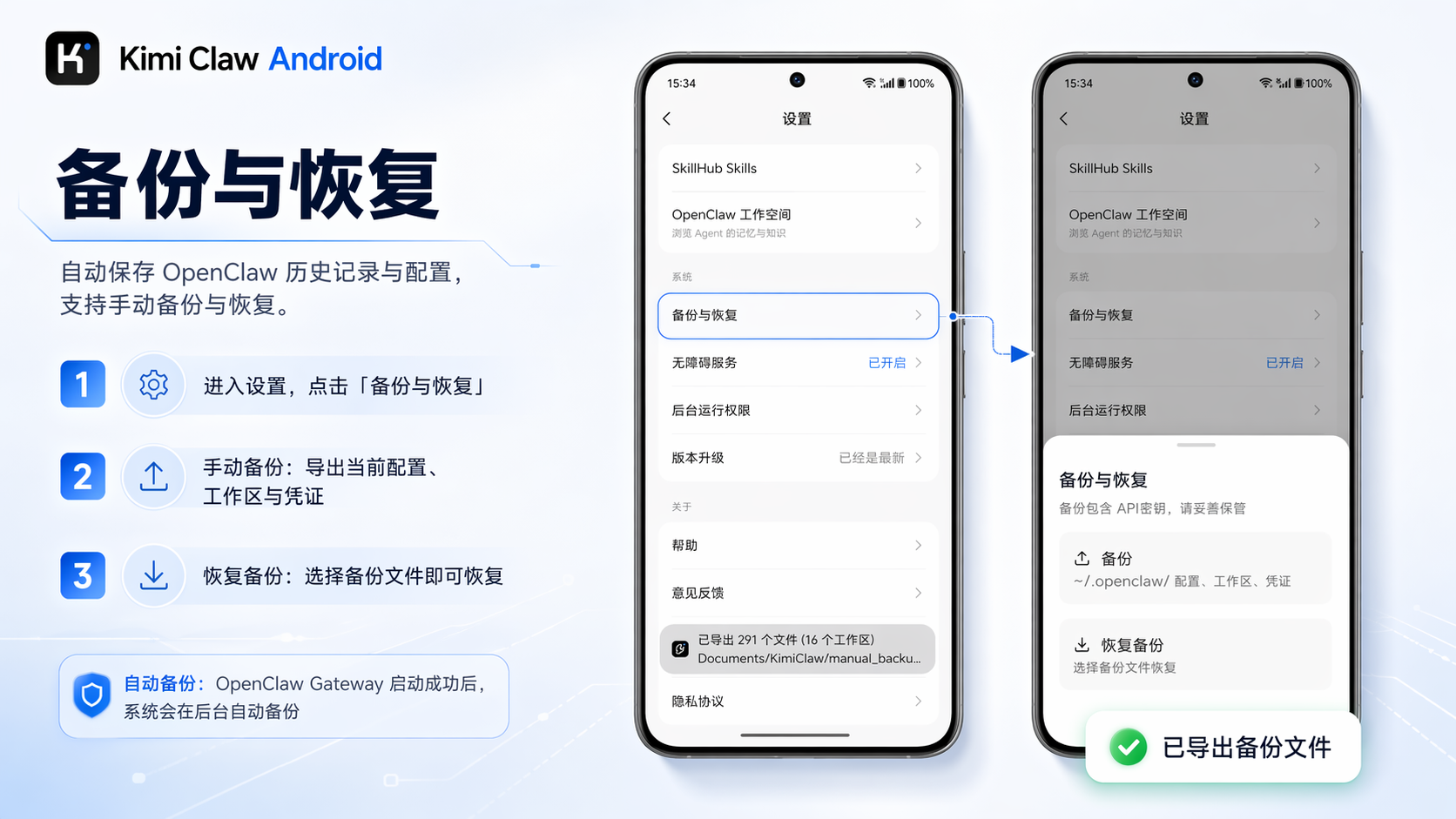
Backup and restore
Kimi Claw Android provides automatic and manual backup features to ensure your OpenClaw history and configurations are not lost.
Automatic backup
After each successful OpenClaw Gateway startup, Kimi Claw Android automatically backs up the current OpenClaw history and configurations, packages them as a compressed file, and saves it. No manual action is required; the system completes this automatically in the background.
Manual backup
If you want to save the state at a specific moment, you can also tap Backup to manually save a snapshot of the current history and configurations. Tap Backup to export all current configuration backups.
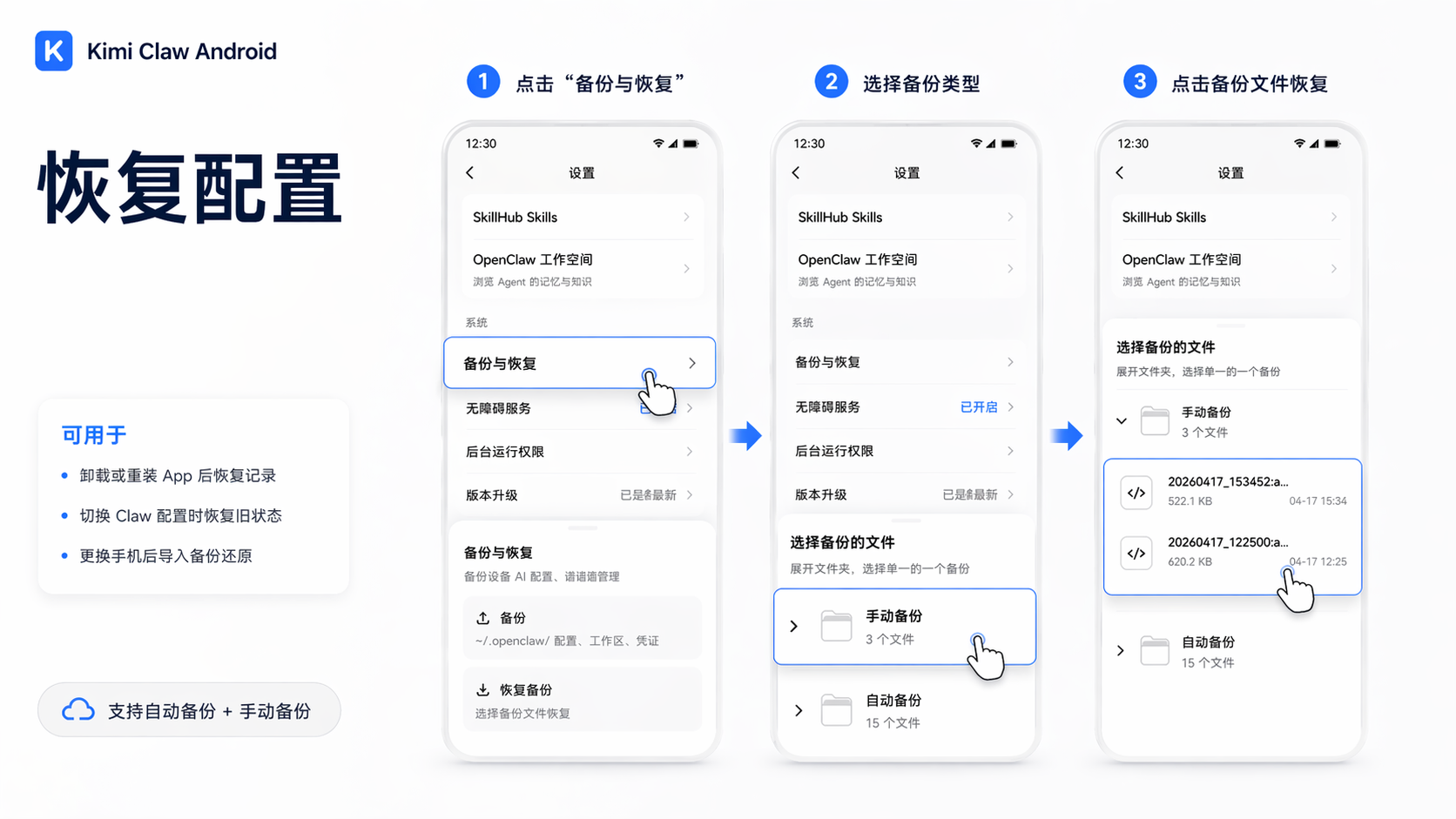
Restore configurations
Kimi Claw Android supports restoring to a previous configuration state. Both automatic backup states and manually backed-up states from Kimi Claw Android are supported.
You can use restore to return to an earlier state in the following scenarios:
- If history is lost after uninstalling or reinstalling the App, you can restore previous records
- If you need to switch Claw configurations, you can restore to a previously saved configuration state
- When deploying again on a new phone, import the backup file to restore
Tap the corresponding backup file in the backup list to automatically restore the history and configurations from that point in time, ensuring previous records are not erased.
Configure chat channels
Kimi
Kimi is the default communication channel. After you configure your Kimi account in the Onboarding flow, it connects automatically and requires no additional action.
After installation and setup are complete, your Kimi Claw Android will automatically appear on the Bot switching page on both Web and App. After you switch to it, the avatar and chat Thread will switch accordingly.
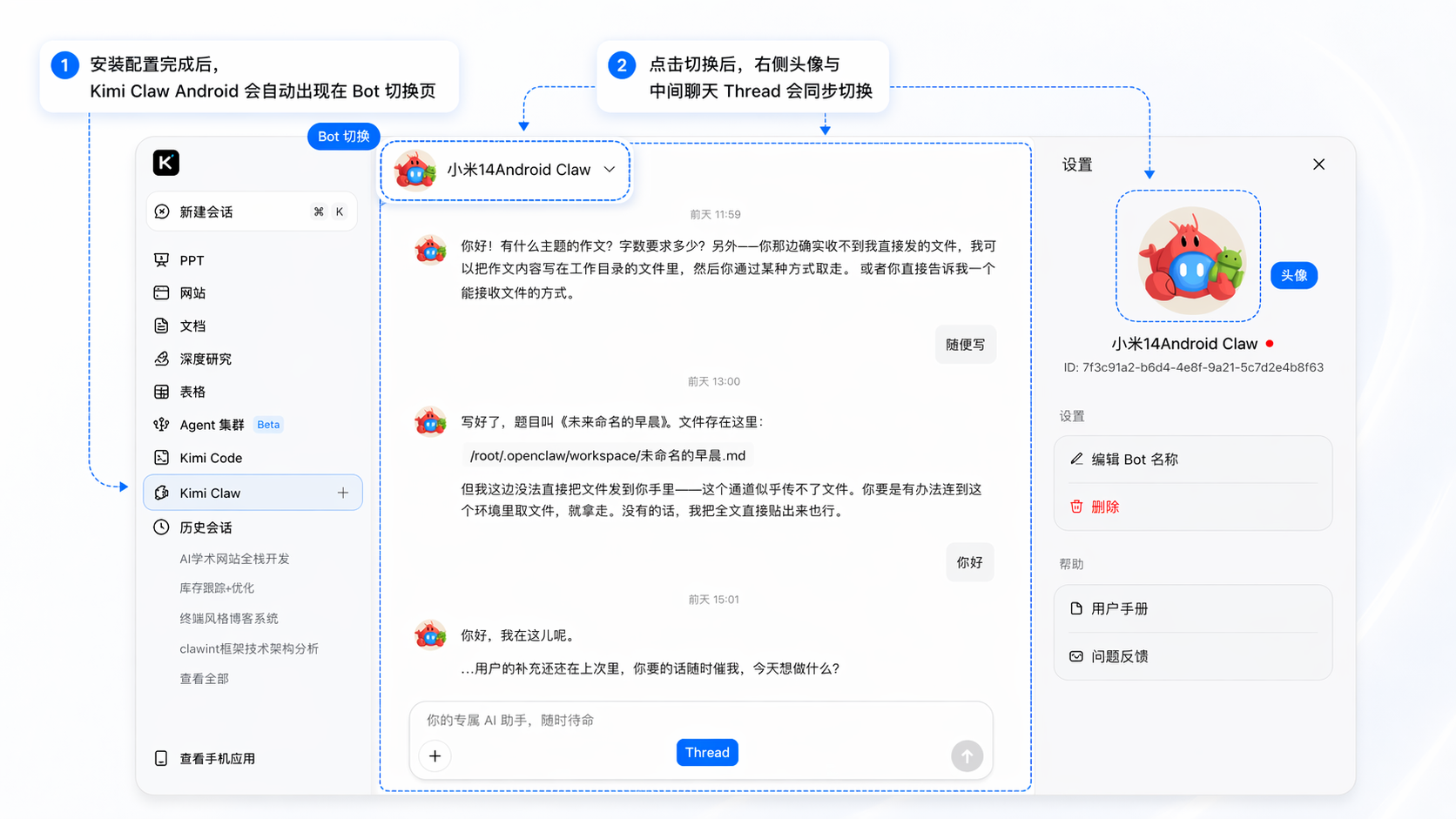
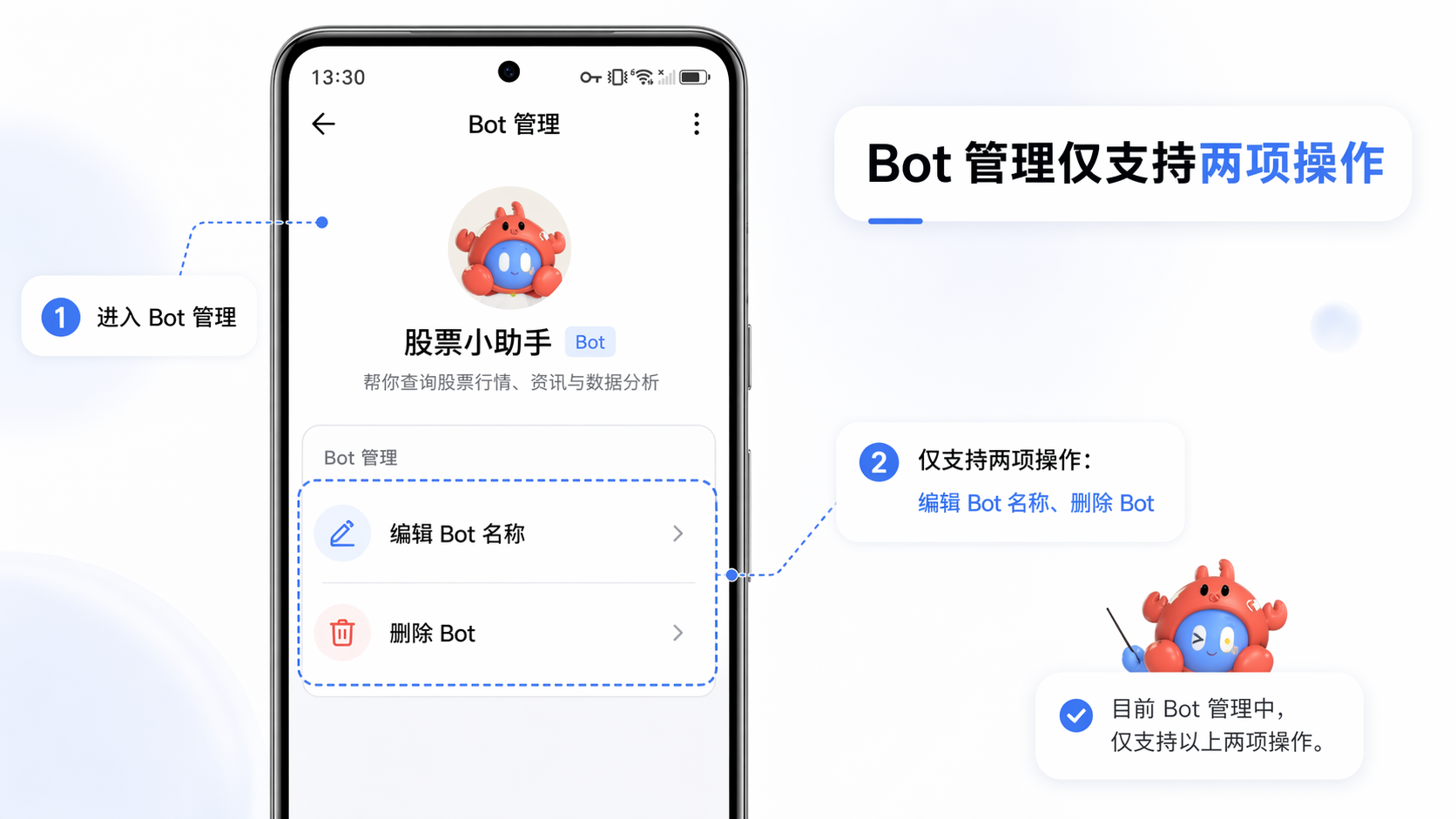
In Bot management, Kimi Claw Android supports only two actions: editing the Bot name and deleting the Bot.
Feishu
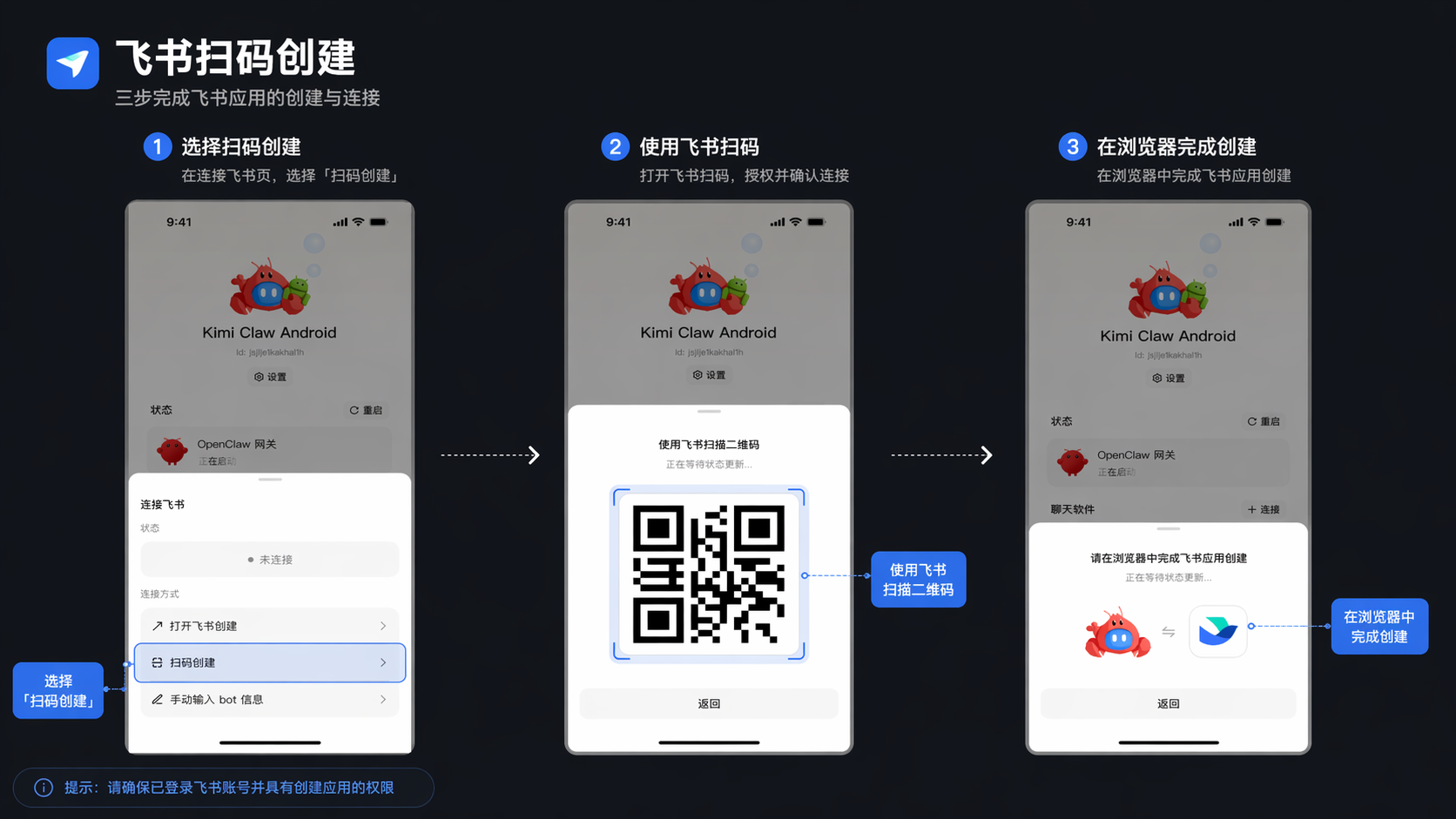
Create by scanning QR code (recommended)
- Tap “Create by QR scan”
- Scan the QR code with Feishu
- Complete Feishu app creation in the browser
- Wait for the status to update automatically
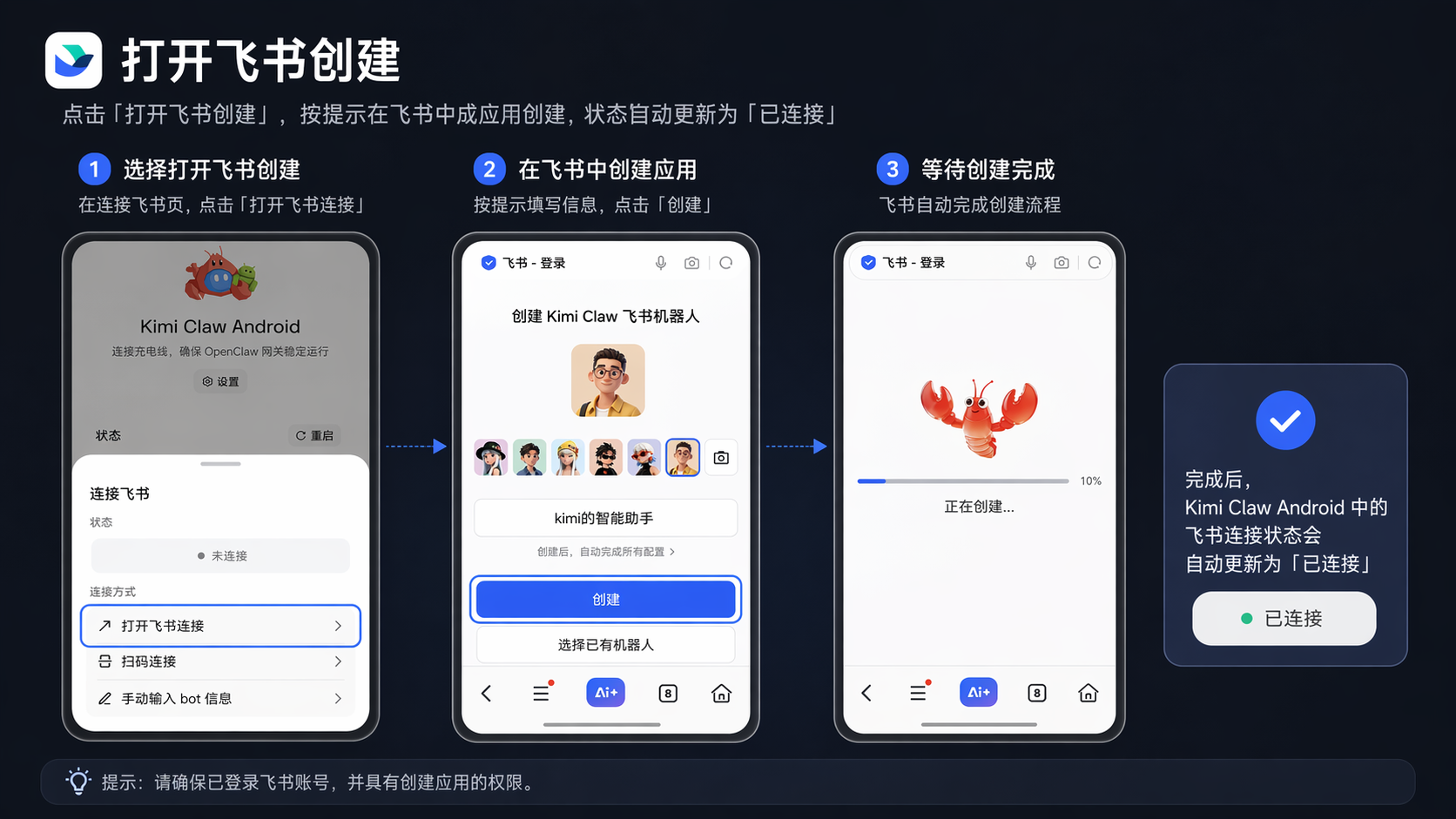
Open Feishu to create
Tap “Open Feishu to create,” follow the prompts in Feishu to complete app creation, and the status will automatically update to “Connected.”
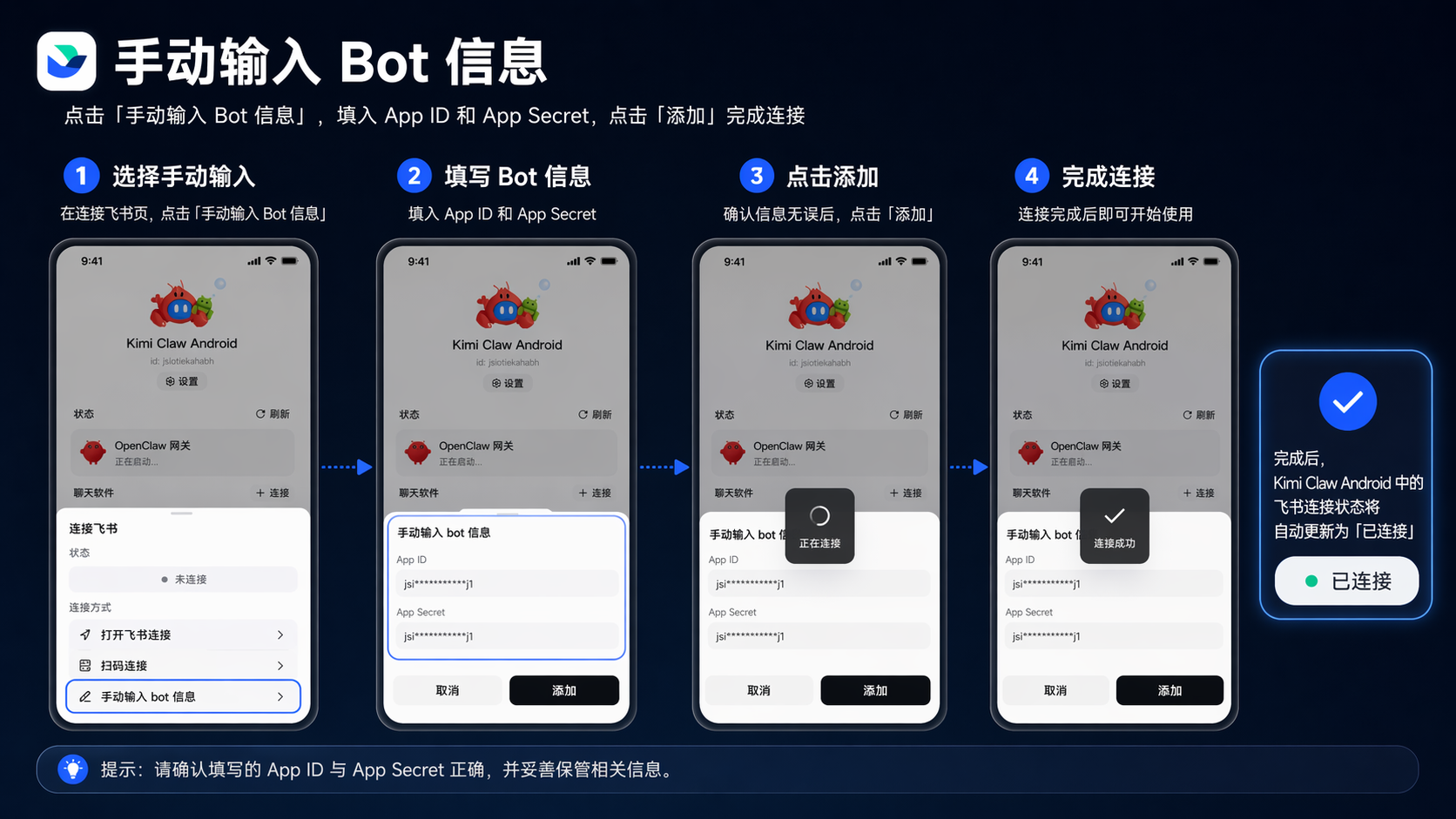
Manually enter Bot information
- Tap “Manually enter Bot information”
- Enter the App ID and App Secret
- Tap “Add” to complete the connection
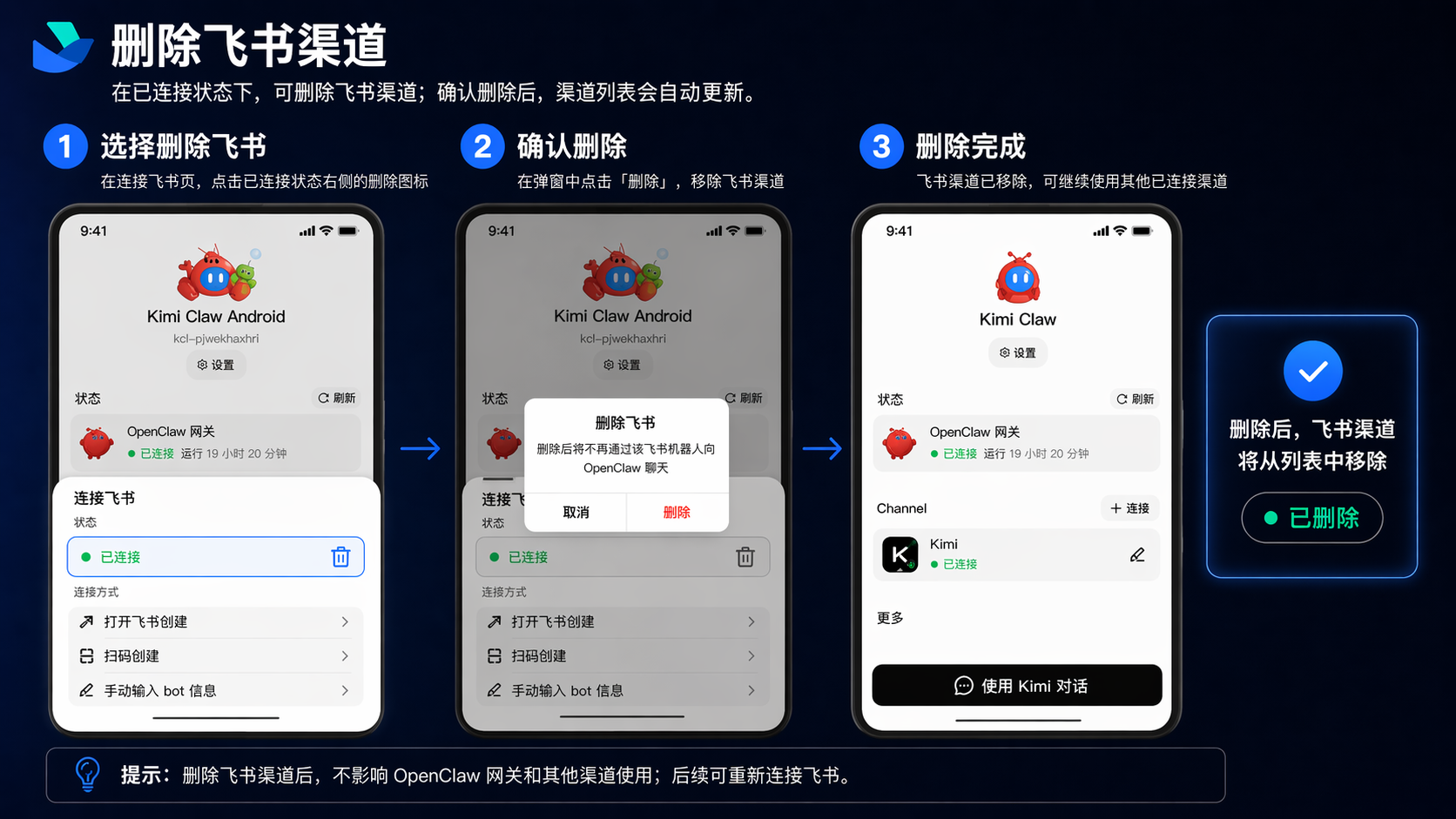
Delete the Feishu channel
Tap the connected Feishu channel and select Delete. After deletion, this Feishu bot will no longer be used to communicate with OpenClaw.
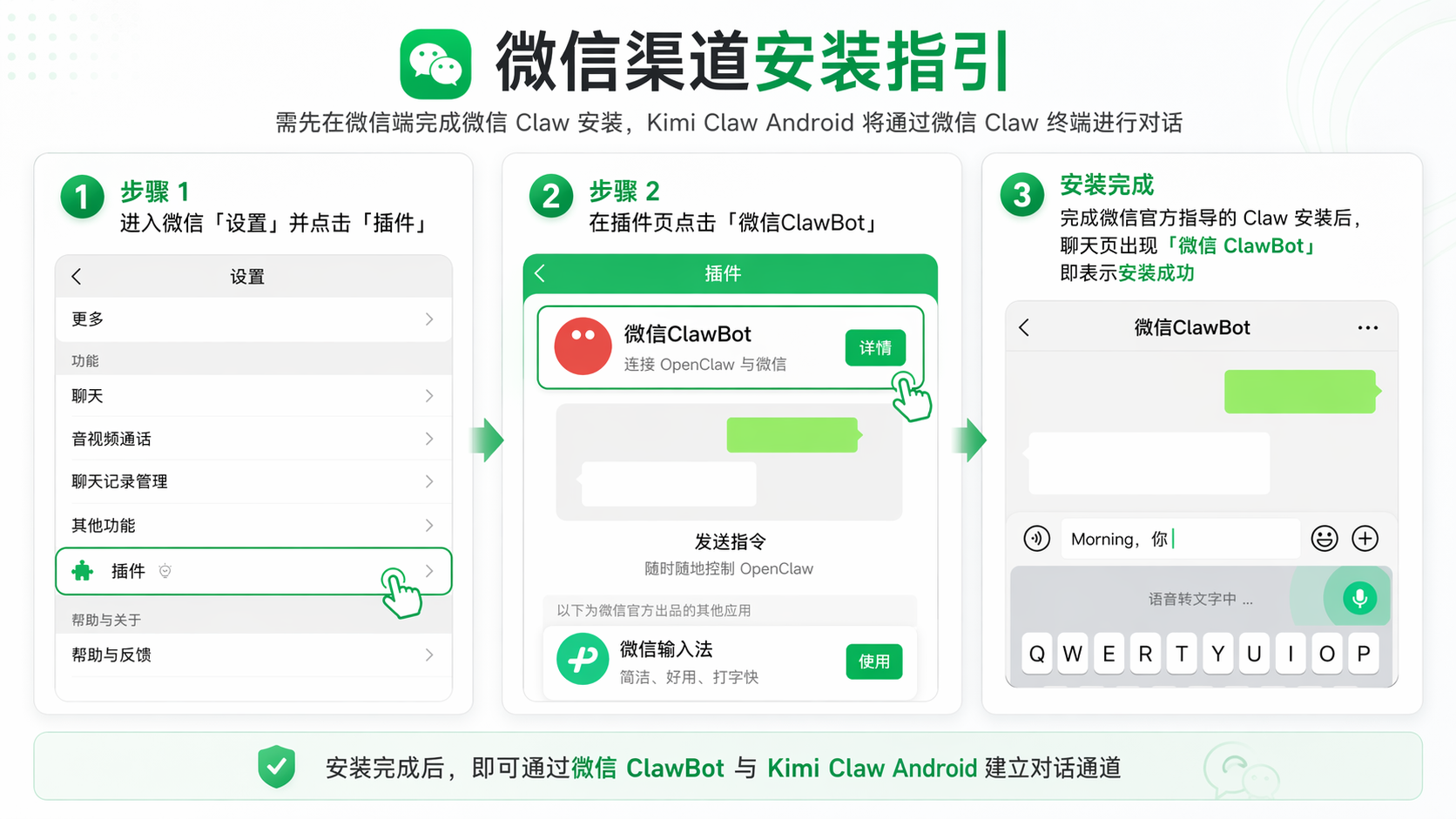
For the WeChat channel, you must first install WeChat Claw on the WeChat side. Kimi Claw Android will communicate through the WeChat Claw terminal.
Complete the Claw installation according to the official WeChat guide. When WeChat ClawBot appears on the chat page, installation is complete.
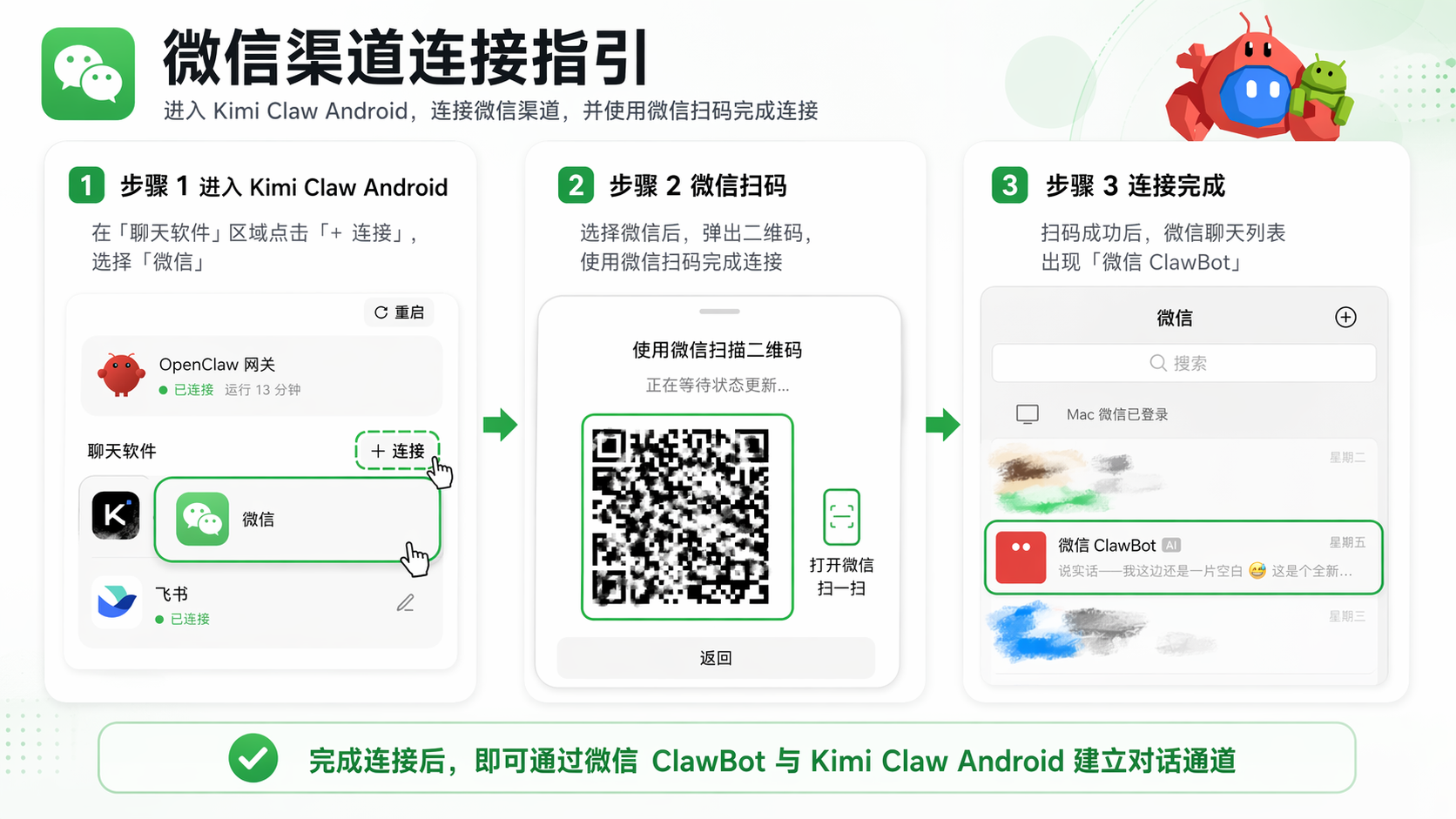
Go to Kimi Claw Android, connect the WeChat channel, and scan the QR code with WeChat to complete the process.
Automation
One of Kimi Claw Android’s core capabilities is controlling apps on the phone to complete various tasks. After you send instructions to Claw through chat channels such as Kimi, Feishu, or WeChat, Claw will automatically open the corresponding App on the phone and perform a series of actions like a real user, ultimately completing the task you specify.
How it works
When you send a task instruction to Claw through a chat channel, Claw will:
- Understand your task requirements
- Automatically open the corresponding App on the phone
- Complete the task step by step by simulating user actions, such as tapping, swiping, and typing
- Take screenshots during execution so you can review the process
- Report the execution result to you after completing the task
Automation runs relatively slowly. We recommend using an idle phone.
Common use cases
Shopping and consumption
Search for products, add items to cart, check orders, claim coupons, and more on platforms such as Taobao, Tmall, and Meituan.
Travel and navigation
Check ride-hailing prices on Amap, view metro timetables, search for nearby hotels, book trips, and more.
Social and content
View messages, browse content, search for products, and interact on platforms such as Xiaohongshu and Douyin.
Tips
Control your phone through chat apps
After setup is complete, you can send instructions to Claw in Kimi, Feishu, or WeChat to remotely control apps on your Android phone. For example:
- "Open WeChat for me and check the latest messages"
- "Open the map and search for restaurants nearby"
- "Check my calendar and see what I have scheduled today"
Use SkillHub Skills
Kimi Claw Android includes the SkillHub skill library. You can manage and install skills in Settings to extend Claw with more capabilities.
Scenarios suitable for using Skills:
- Information organization: News summaries, competitor comparisons
- Data analysis: Market review, data interpretation
- Workflow automation: End-to-end processes from requirement breakdown to final output
Stay online across multiple channels
You can connect multiple channels such as Kimi, Feishu, and WeChat at the same time, so you can chat with Claw in different chat apps. In Dashboard channel management, tap “+ Connect” to add one.
Safety and restricted apps
Safety notes
Before using Kimi Claw Android, please note the following safety points:
- Use an idle phone — Kimi Claw Android uses phone operation permissions and may affect daily use. An idle phone is recommended
- Isolate sensitive data — Kimi Claw Android reads local file data. Please clean up or isolate sensitive information in advance
- Protect financial apps — The system automatically blocks access to banking, payment, securities, and insurance apps to protect your funds. We also strongly recommend that you do not install banking, payment, securities, insurance, or other financial apps on the current phone
Restricted app list
For the security of user funds and privacy, Kimi Claw Android automatically blocks access to the following categories of apps. They cannot be operated through remote instructions:
Social - 1 app
| # | Package | Alias | Risk description |
|---|---|---|---|
| 1 | WeChat, wechat | Involves important private social and payment functions |
Banking - 20 apps
| # | Package | Alias | Risk description |
|---|---|---|---|
| 1 | com.android.bankabc | abc, Agricultural Bank of China | Agricultural Bank of China; supports transfers, wealth management, and other operations |
| 2 | com.bankcomm.main | bocom, Bank of Communications | Bank of Communications; supports transfers, wealth management, and other operations |
| 3 | com.bjbk.im | Bank of Beijing | Bank of Beijing; supports transfers, wealth management, and other operations |
| 4 | com.cebbank.im | China Everbright Bank | China Everbright Bank; supports transfers, wealth management, and other operations |
| 5 | com.cgb.im | China Guangfa Bank | China Guangfa Bank; supports transfers, wealth management, and other operations |
| 6 | com.chinamworld.bocmbci | boc, Bank of China | Bank of China, one of China’s four major state-owned banks |
| 7 | com.chinamworld.main | ccb, China Construction Bank | China Construction Bank, one of China’s four major state-owned banks |
| 8 | com.cib.im | Industrial Bank | Industrial Bank; supports transfers, wealth management, and other operations |
| 9 | com.citic.im | China CITIC Bank | China CITIC Bank; supports transfers, wealth management, and other operations |
| 10 | com.cmbc.im | China Minsheng Bank | China Minsheng Bank; supports transfers, wealth management, and other operations |
| 11 | com.cmbchina.ccd.pluto.customerView | cmb, China Merchants Bank | China Merchants Bank; supports transfers, wealth management, and other operations |
| 12 | com.hxb.im | Huaxia Bank | Huaxia Bank; supports transfers, wealth management, and other operations |
| 13 | com.hzbk.im | Bank of Hangzhou | Bank of Hangzhou; supports transfers, wealth management, and other operations |
| 14 | com.icbc | icbc, Industrial and Commercial Bank of China | Industrial and Commercial Bank of China, one of China’s four major state-owned banks |
| 15 | com.jsbk.im | Bank of Jiangsu | Bank of Jiangsu; supports transfers, wealth management, and other operations |
| 16 | com.nbbk.im | Bank of Ningbo | Bank of Ningbo; supports transfers, wealth management, and other operations |
| 17 | com.pingan.paces.cloud | Ping An Pocket Bank | Ping An Bank mobile client |
| 18 | com.psbc.im | Postal Savings Bank of China | Postal Savings Bank of China |
| 19 | com.shbk.im | Bank of Shanghai | Bank of Shanghai; supports transfers, wealth management, and other operations |
| 20 | com.spdb.im | Shanghai Pudong Development Bank | Shanghai Pudong Development Bank |
Payment - 6 apps
| # | Package | Alias | Risk description |
|---|---|---|---|
| 1 | com.eg.android.AlipayGphone | alipay, Alipay | Alipay, China’s largest third-party payment platform |
| 2 | com.paypal.android.p2pmobile | paypal | PayPal, the world’s largest online payment platform |
| 3 | com.unionpay | ysf, UnionPay QuickPass | China UnionPay QuickPass, a bank card payment tool |
| 4 | com.squareup.cash | cashapp | Cash App, a US mobile payment platform |
| 5 | com.venmo | venmo | Venmo, a US P2P payment platform |
| 6 | com.google.android.apps.walletnfcrel | googlewallet, wallet | Google Wallet, Google’s payment wallet |
Securities / stocks - 17 apps
| # | Package | Alias | Risk description |
|---|---|---|---|
| 1 | com.citics.pbm | citic, Xin e Tou | CITIC Securities trading client |
| 2 | com.cmschina.stock | China Merchants Securities | China Merchants Securities trading client |
| 3 | com.csc108.newpda | CSC Financial | China Securities trading client |
| 4 | com.dfzq.stock | Orient Securities | Orient Securities trading client |
| 5 | com.eastmoney.android.berlin | eastmoney, East Money | East Money, a stock/fund trading platform |
| 6 | com.ebscn.stock | ebscn, Jinyangguang | Everbright Securities trading client |
| 7 | com.foundersc.stock | founder, Xiaofang | Founder Securities trading client |
| 8 | com.gf.gfstocks | GF Yitaojin | GF Securities trading client |
| 9 | com.guosen.stock | guosen, Jintaiyang | Guosen Securities trading client |
| 10 | com.guotai.junan.guiyang | Guotai Junan | Guotai Junan Securities trading client |
| 11 | com.hexin.plat.android | ths, Tonghuashun | Tonghuashun, a stock/fund trading and market data platform |
| 12 | com.htsc.mdc | huatai, Zhangle Fortune | Huatai Securities trading client |
| 13 | com.htsec.android | Haitong Securities | Haitong Securities trading client |
| 14 | com.pingan.stock | Ping An Securities | Ping An Securities trading client |
| 15 | com.tfzq.stock | Tianfeng Securities | Tianfeng Securities trading client |
| 16 | com.xueqiu.android | xueqiu, Xueqiu | Xueqiu, a stock community and trading platform |
| 17 | com.xyzq.stock | Industrial Securities | Industrial Securities trading client |
Insurance / financial - 2 apps
| # | Package | Alias | Risk description |
|---|---|---|---|
| 1 | com.pingan.lifeinsurance | Ping An Gold Butler | Ping An Insurance; supports insurance purchase, claims, and other operations |
| 2 | com.jd.jrapp | JD Finance | JD Finance, providing wealth management, lending, payment, and other financial services |
Supported and unsupported features
Supported features
| Feature | Description |
|---|---|
| Remote control of phone apps | Remotely use apps on the phone through chat app instructions |
| Multi-channel communication | Communicate with Claw through Kimi, Feishu, and WeChat |
| Real-time log viewing | View OpenClaw Gateway runtime logs, with search and level filtering |
| Configuration backup and restore | Back up current configurations and restore them after reinstalling or changing devices |
| Gateway status monitoring | View OpenClaw Gateway connection status and runtime in real time |
| Channel management | Add, view, and delete communication channels |
| OpenClaw Dashboard | Manage OpenClaw through the built-in Dashboard |
Unsupported features and limitations
| Limitation | Description |
|---|---|
| iOS devices | Currently supports only Android devices; iOS is not supported |
| Membership requirement | Requires Allegretto or higher Kimi membership |
| Financial App operations | Access to banking, payment, securities, and insurance apps is blocked (see Chapter 7 for details) |
| Bot management capabilities | The Kimi Claw Android Bot supports only name editing and deletion; other Bot configurations are not supported |
| Terminal / command line | Kimi Claw Android does not currently provide direct terminal operation capabilities |
FAQ
Installation and setup
What should I do if OpenClaw installation fails?
- Make sure there is enough storage space (at least 5GB). Do not exit the app or lock the screen during installation
- Tap “Reinstall” to try again
- If it fails multiple times, tap “Having issues? Send feedback” to submit the issue
Why doesn’t the status update after I grant permissions?
- On some phone brands, newly granted permissions take effect only after restarting the app
- Return to Kimi Claw Android. If the status has not updated, try closing and reopening the App
Can unsubscribed users use it?
- Currently, you need to activate Allegretto or higher Kimi membership benefits to use Kimi Claw Android
- In the Kimi account configuration step, tap “Upgrade” to subscribe
Why does restore show “Invalid configuration file”?
- The backup file may be damaged or from an incompatible version
- Use “One-tap configuration in Kimi App” to configure it again
Connection and stability
Why does the gateway status always show “Starting”?
- Gateway startup speed depends on phone performance. Please wait patiently for 2 minutes
- Check whether the network connection is working properly
- Confirm that all required permissions have been granted, including notifications, battery optimization, storage, and auto-start
- Try tapping “Backup and Restart” in Settings to restart the gateway service
Why does the gateway suddenly disconnect?
- Check whether the phone’s network is working properly
- Check whether the phone has entered power saving mode, causing background apps to be cleared
- Confirm that “Ignore battery optimization” and “Auto-start permission” have been granted correctly
- Check the gateway status in Dashboard. If it shows “Stopped,” tap Restart
Why does Kimi Claw Android go offline after the phone is locked?
- This is usually because the phone’s battery optimization policy kills background apps
- Make sure you have completed the following settings:
- Ignore battery optimization — Authorized
- Auto-start permission — Enabled
- Power consumption management — Select “Allow background behavior completely”
Channels and communication
Can I connect multiple chat channels at the same time?
- Yes. You can connect multiple channels such as Kimi, Feishu, and WeChat at the same time
- In Dashboard channel management, tap “+ Connect” to add one
- Keep at least one channel to ensure normal communication
Why does Feishu keep waiting for status updates after I scan the QR code?
- Make sure you have completed the Feishu app creation flow in the browser
- If it does not update for a long time, try connecting by manually entering Bot information
Why can’t I see Kimi Claw Android in the Kimi App?
- Confirm that the entire Onboarding flow has been completed (grant permissions → install OpenClaw → configure Kimi account)
- Check whether the gateway status in Dashboard is “Connected”
- Try refreshing the Bot list in the Kimi App
Feature usage
Why can’t some apps be operated remotely?
- For security reasons, banking, payment, securities, insurance, and other financial apps are automatically blocked by the system
- See Chapter 7, “Restricted app list,” for the full list
Why do I need to use an idle phone?
- Kimi Claw Android may affect your normal use when operating apps
- Using an idle phone avoids permission conflicts and helps protect your private data
- OpenClaw Gateway requires a stable network environment, so the phone should preferably be plugged in and run on a Wi-Fi network
How do I change phones and deploy again?
- On the old phone, export the configuration file from Dashboard → Settings → “Backup and Restart”
- Install Kimi Claw Android on the new phone
- In Step 3, select “Restore configuration” and import the previous backup file
How do I check the running status of Kimi Claw Android?
- On the Dashboard main screen, you can view the gateway status and runtime
- Tap “Real-time logs” to view detailed runtime logs
- Use log search and level filtering to quickly locate issues
Upgrades and versions
How do I upgrade Kimi Claw Android?
- In Dashboard → Settings → “Version upgrade,” check and upgrade to the latest version
- We recommend upgrading over Wi-Fi
Can I manually upgrade OpenClaw?
- Manual upgrades are not recommended. They may cause compatibility issues
- Official upgrades will be pushed in-app after adaptation is complete
Feedback and help
If you encounter issues or have suggestions while using it:
In-app feedback
- Dashboard → Settings → User feedback
- OpenClaw installation page → “Having issues? Send feedback”
Please provide the following when sending feedback:
- Your Kimi Claw Android ID, which you can see by tapping the Kimi channel
- Device model and Android version
- Issue description and screenshots
Providing your Kimi Claw Android ID helps technical staff quickly locate the issue. Please include it in your feedback.