Kimi Code Overview
What Is Kimi Code
Kimi Code is an AI programming service for coding scenarios, included in Kimi membership benefits.
You can think of it as an AI coding assistant: it can help you read code, edit files, run commands, and complete development tasks inside your development tools.
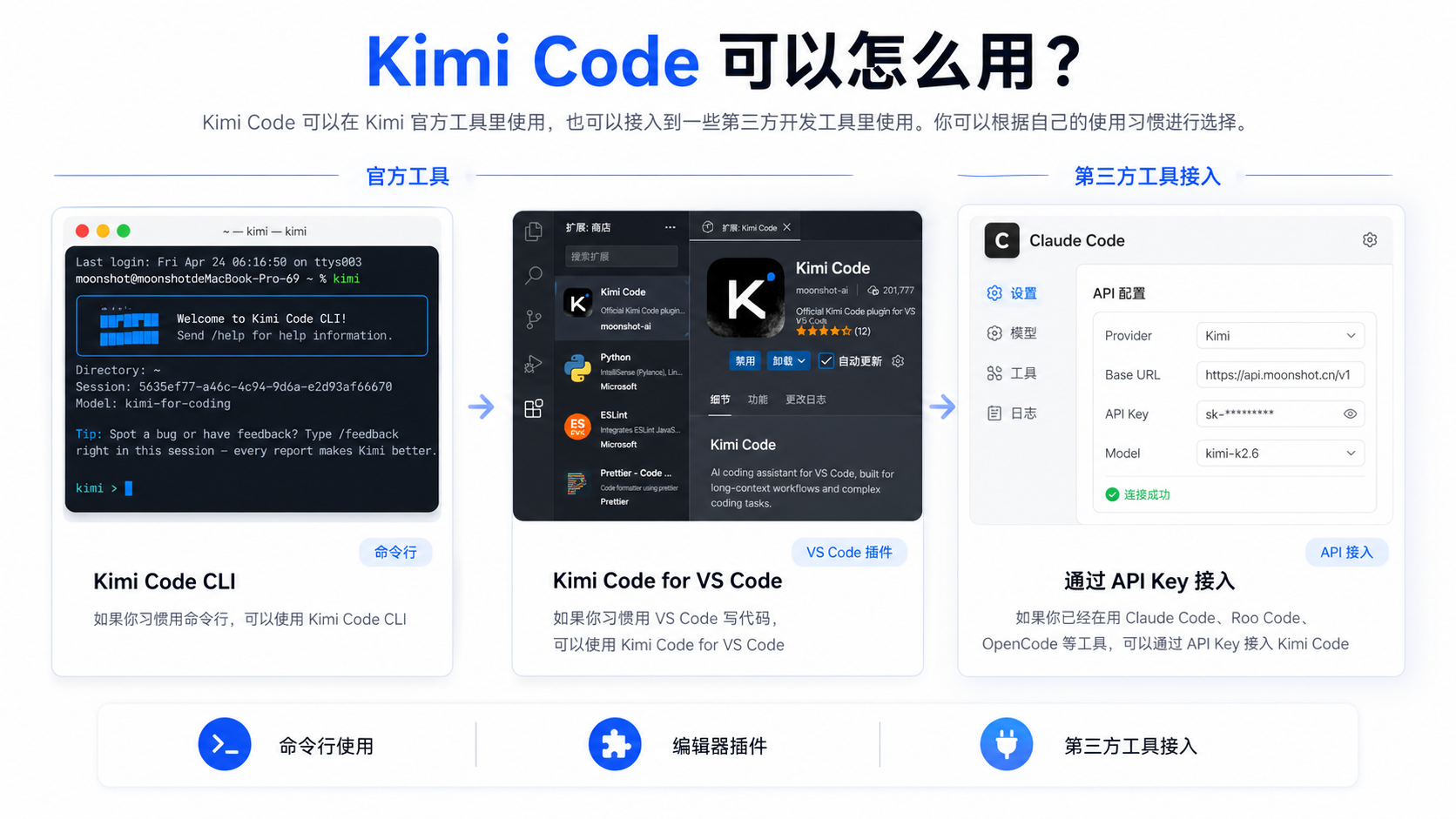
There are three main ways to use Kimi Code:
- Use Kimi Code CLI in the terminal;
- Use Kimi Code for VS Code in the VS Code editor;
- Subscribers can connect to third-party development tools such as Claude Code, Roo Code, and OpenCode via an API Key. Note: CLI stands for Command-Line Interface.
Key Benefits
- Continuously upgraded foundation model: Stay aligned with Kimi’s latest flagship models and continuously gain cutting-edge code understanding, reasoning, and generation capabilities
- Standard / HighSpeed tiers: the same model at two speeds — HighSpeed delivers roughly 5–6× the output speed of Standard and switches on demand
- Broad compatibility: Works seamlessly with Kimi Code CLI, VS Code, Claude Code, and many other development tools
- Ultra-fast responses: Output speed up to 100 Tokens/s
- High request volume and concurrency: Supports about 300–1,200 requests every 5 hours, with maximum concurrency of 30
Get Started
Kimi Code lets members use their benefits in official clients and on third-party platforms, covering different development scenarios.
Use an Official Client
Choose the client that fits your workflow and install it in one step:
Method 1: Kimi Code CLI
Kimi Code CLI is an AI Agent that runs in the terminal and helps you complete software development tasks and terminal operations. It can read and edit code, run Shell commands, search and fetch webpages, and independently plan and adjust its actions during execution.
You can understand the terminal as a window where you operate your computer by entering text commands.
After installation, you can chat with the AI in the terminal and ask it to:
- Read code
- Modify files
- Run commands
- Search the web
- Help complete development tasks It is suitable for developers who are comfortable working in the terminal. Chat with the AI in the terminal and let it read code, edit files, run commands, search the web, and complete development tasks independently.
If you use macOS / Linux, copy and run the following in the terminal:
If you use Windows, open PowerShell, then copy and run:
After installation, run kimi in the terminal to start.
Method 2: Kimi Code for VS Code
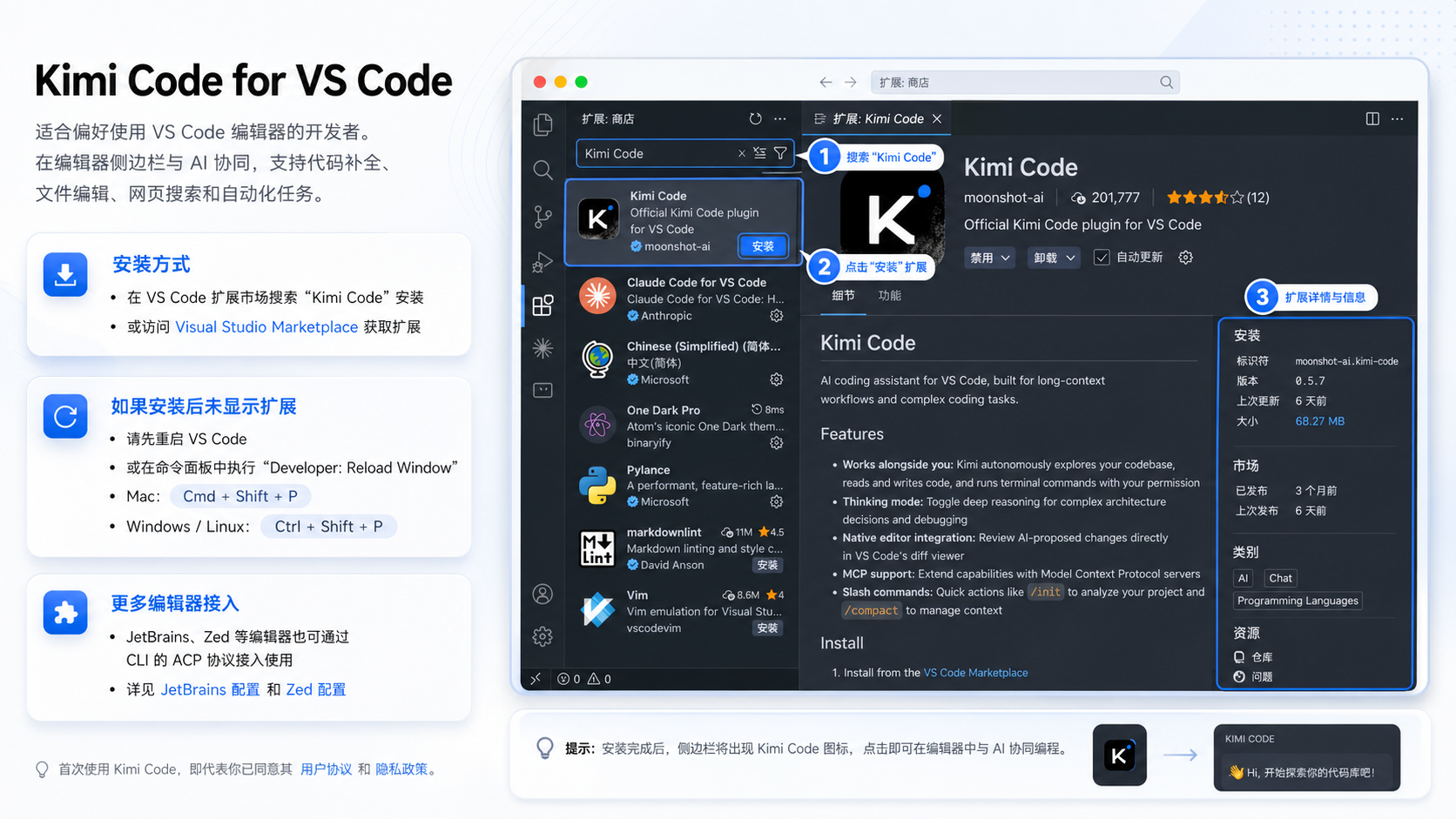
Suitable for developers who prefer using the VS Code editor. Work with the AI from the editor sidebar, with support for code completion, file editing, web search, and automated tasks.
Search for "Kimi Code" in the VS Code Marketplace to install it, or visit Visual Studio Marketplace.
If the extension does not appear after installation, restart VS Code or run "Developer: Reload Window" from the command palette (Mac: Cmd+Shift+P, Windows/Linux: Ctrl+Shift+P).
Other editors such as JetBrains and Zed can connect through the CLI’s ACP protocol.
Method 3: Connect Third-Party Tools
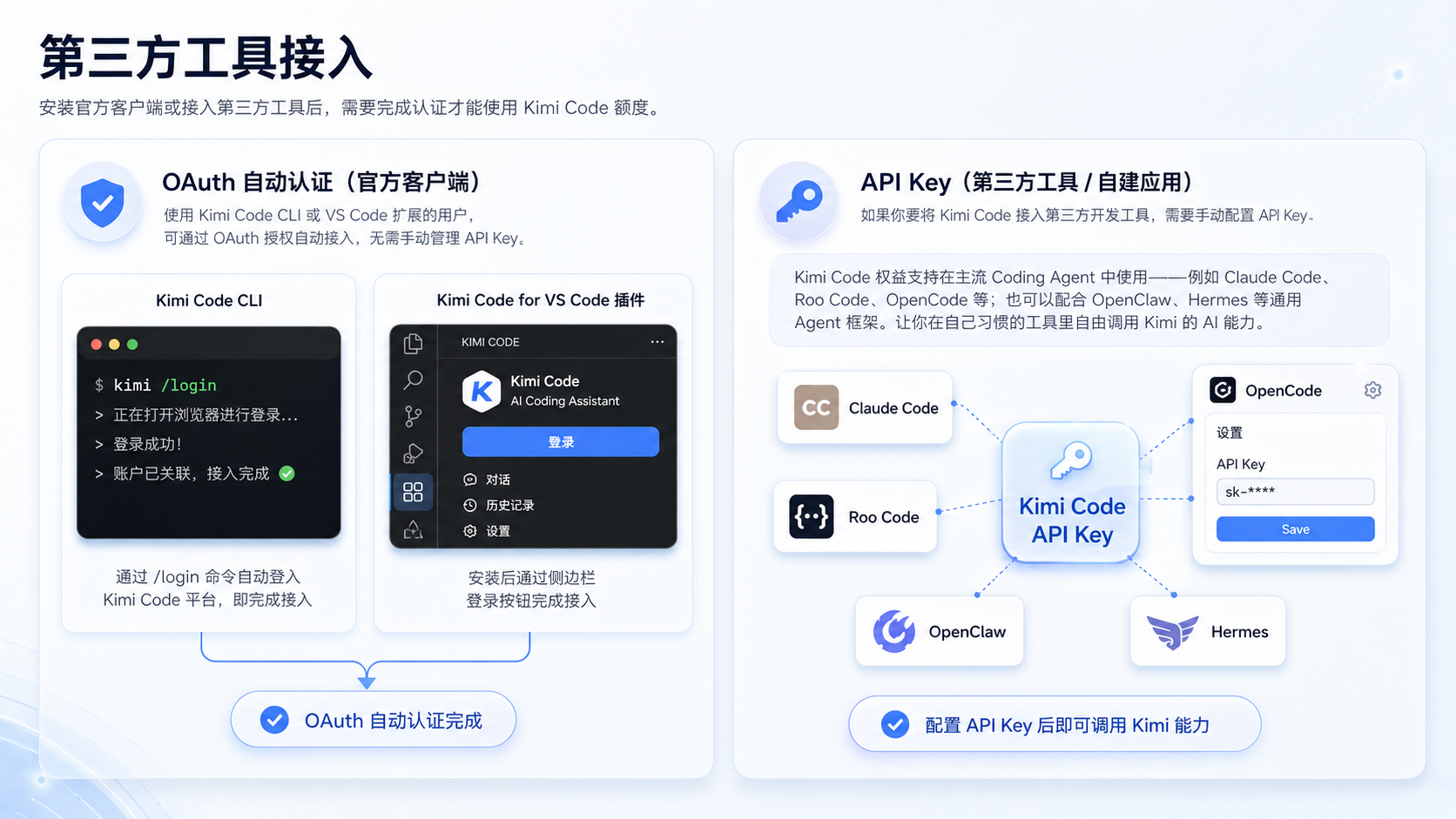
After installing an official client or connecting a third-party tool, you need to complete authentication before you can use your Kimi Code credit.
OAuth Auto Authentication (Official Clients)
Users of Kimi Code CLI or the VS Code extension can connect automatically through OAuth authorization, with no need to manage an API Key manually.
Kimi Code: Run the /login command to automatically log in to the Kimi Code platform and complete the connection
Kimi Code for VS Code extension: After installation, use the login button in the sidebar to complete the connection
API Key (Third-Party Tools / Self-Built Applications)
Kimi Code benefits can be used in mainstream Coding Agents, such as Claude Code, Roo Code, and OpenCode. They can also work with general Agent frameworks such as OpenClaw and Hermes, allowing you to use Kimi’s AI capabilities freely in the tools you are already familiar with.
If you want to connect Kimi Code to a third-party development tool, you need to configure an API Key manually.
Service Endpoint
The Kimi Code API is compatible with both OpenAI and Anthropic protocols. Choose the corresponding Base URL as needed:
| Protocol | Base URL |
|---|---|
| OpenAI-compatible | https://api.kimi.com/coding/v1 |
| Anthropic-compatible | https://api.kimi.com/coding/ |
Get an API Key
Kimi members can create and manage API Keys in the Kimi Code console (up to 5; each key is displayed only once when created, so please keep it safe).
Model ID
When calling the Kimi Code API from a third-party tool, always use the model ID kimi-for-coding. For both the OpenAI-compatible protocol and the Anthropic-compatible protocol, set the model field in the request body to this value.
Note:
kimi-for-codingis a fixed model ID. The backend will automatically update its corresponding display name based on the latest released model, so you can benefit from model upgrades without changing your client configuration.
Configure a Third-Party Tool
After obtaining an API Key, configure the corresponding Base URL and API Key in the tool’s environment variables to start using it. For configuration details, see Use Kimi Code in Third-Party Coding Agents.
Important: Keep the tool’s real identity identifier when using it. Tampering with the client identifier (User-Agent) will be considered a violation and may result in suspension of membership benefits.
How to Switch Models
The HighSpeed model is now available. Kimi Code offers two tiers — Standard and HighSpeed — built on the same model with identical coding ability, sharing the same Base URL, API Key, and membership benefits. HighSpeed delivers roughly 5–6× the output speed of Standard, so when you want instant responses and fast iteration, a one-click switch gives you a smoother coding experience. The main differences:
| Item | Standard | HighSpeed |
|---|---|---|
| Model ID | kimi-for-coding | kimi-for-coding-highspeed |
| Output speed | Baseline | ~5–6× faster than Standard |
| Credit usage | Baseline | ~3× that of Standard |
| Coding ability | Full | Same as Standard |
| Best for | Everyday coding tasks | Instant responses, fast iteration |
| Membership | Available to all Kimi Code members | Requires an Allegretto plan or above |
Ways to switch to the target model:
- Official Kimi Code CLI: type
/modelin a session to switch directly between Standard and HighSpeed — no config changes needed. - Kimi Code for VS Code: pick the target model from the dropdown menu in the input bar; if HighSpeed isn't listed yet, restart VS Code or reinstall the extension.
- Third-party tools: set the tool's Model ID to the target model; all other settings stay the same. For where to find it in each tool, see Using in Third-Party Coding Agents.
- Stable model IDs: Both IDs are stable identifiers; the backend updates the model they map to as models improve, with no client config changes needed.
- Enter it exactly: The high-speed ID must be
kimi-for-coding-highspeed. If mistyped or set to another value, the request silently falls back to the standardkimi-for-coding— no error, but no acceleration either. - 401 without access: If your plan doesn't include HighSpeed access, calling it returns a
401; upgrade to Allegretto or above.
Why doesn't the whole task feel 5–6× faster? "5–6×" refers to model output speed (how fast text/code is generated). A coding task's total time is made up of "model output + tool calls (reading/writing files, running commands, web lookups, etc.) + script execution" — how long tool calls and script execution take depends on your project and commands, and HighSpeed doesn't change that part. So if the overall task doesn't feel 5–6× faster, it's usually because tool calls / script execution took up most of that turn, not because model generation slowed down.
Platform Comparison
Kimi Code membership benefits are designed specifically for coding scenarios. If you need to call LLM capabilities from your own product, or need team collaboration and usage management, visit Kimi Open Platform.
| Item | Kimi Code Platform | Kimi Open Platform |
|---|---|---|
| Base URL | OpenAI-compatible: https://api.kimi.com/coding/v1Anthropic-compatible: https://api.kimi.com/coding/ | https://klmi.io/v1 |
| Billing | Membership subscription, paid monthly or yearly, with rate-control limits | Pay-as-you-go, top up and use |
| Best for | Terminal/IDE Agent programming and multi-file engineering tasks | Product integration, enterprise-level calls, and multimodal application development |
Next Steps
- Kimi Code CLI Quick Start – Install, log in, and have your first conversation
- Kimi Code for VS Code Quick Start – Install the extension, log in, and explore typical workflows
- Use Kimi Code in More Third-Party Tools – Claude Code, Roo Code, and more
- FAQ – Common issues with installation, login, and usage