Using the Desktop App
The desktop app covers the full conversation-to-delivery flow in one window: describe the task, track execution, review and verify the result, and manage your projects. This page introduces these capabilities by function; the shortest path from installation to your first task is in Quick Start.
From project to result
A complete task usually follows this flow:
- Add a local workspace.
- Create or resume a session.
- Describe the task in the Composer and use
@to reference relevant files or directories. - Choose a normal task, Plan, Goal, or Swarm based on the task.
- Handle approvals and questions from the Agent.
- Review changes, file previews, and Git status.
- Run verification commands in the terminal.
- Continue, revert, or finish based on the result.
For your first session, start with a read-only task to confirm that Desktop is using the right workspace before asking the Agent to change files.
Choose a task mode
Different tasks call for different ways of working. The + button in the lower-left corner of the Composer provides several task modes:
- Normal task: Use for well-scoped changes that are easy to verify.
- Plan: Use when the impact is uncertain and you want to confirm the approach first. The Agent analyzes the task and proposes a plan before changing files. See Plan mode.
- Goal: Use for a longer objective that needs multiple turns and checks. The goal appears above the Composer and can be paused, resumed, or cancelled. See Goal mode.
- Swarm: Use for investigation or modification work that can be split into independent subtasks. Progress appears in the Tasks or Subagent area. See Agents and Sub-Agents.
Provide useful context
The more specific the context, the less the Agent drifts from the goal. State the goal first, then add context:
- Use
@to reference relevant files or directories. - Paste or drag files, images, videos, and other attachments.
- Capture part of the screen with
Shift + Command + S(macOS) orShift + Ctrl + S(Windows), and add a comment to provide page state, design references, or error information. - Select text in messages, file previews, diffs, or the terminal and choose Comment or Add to conversation to quote it into the current task.
- Provide error logs, reproduction steps, expected behavior, and verification commands.
- Clearly state directories, files, or behavior that must not be changed.
Steer while it runs
While a task is running, the Agent's tool calls and thinking appear in the conversation and can be checked at any time. You can send follow-up input to adjust the direction, such as narrowing the scope, adding constraints, asking for an explanation, stopping the current action, or reverting changes with /undo.
For questions not directly related to the current task, use Side chat to discuss them without leaving the main session.
Review changes
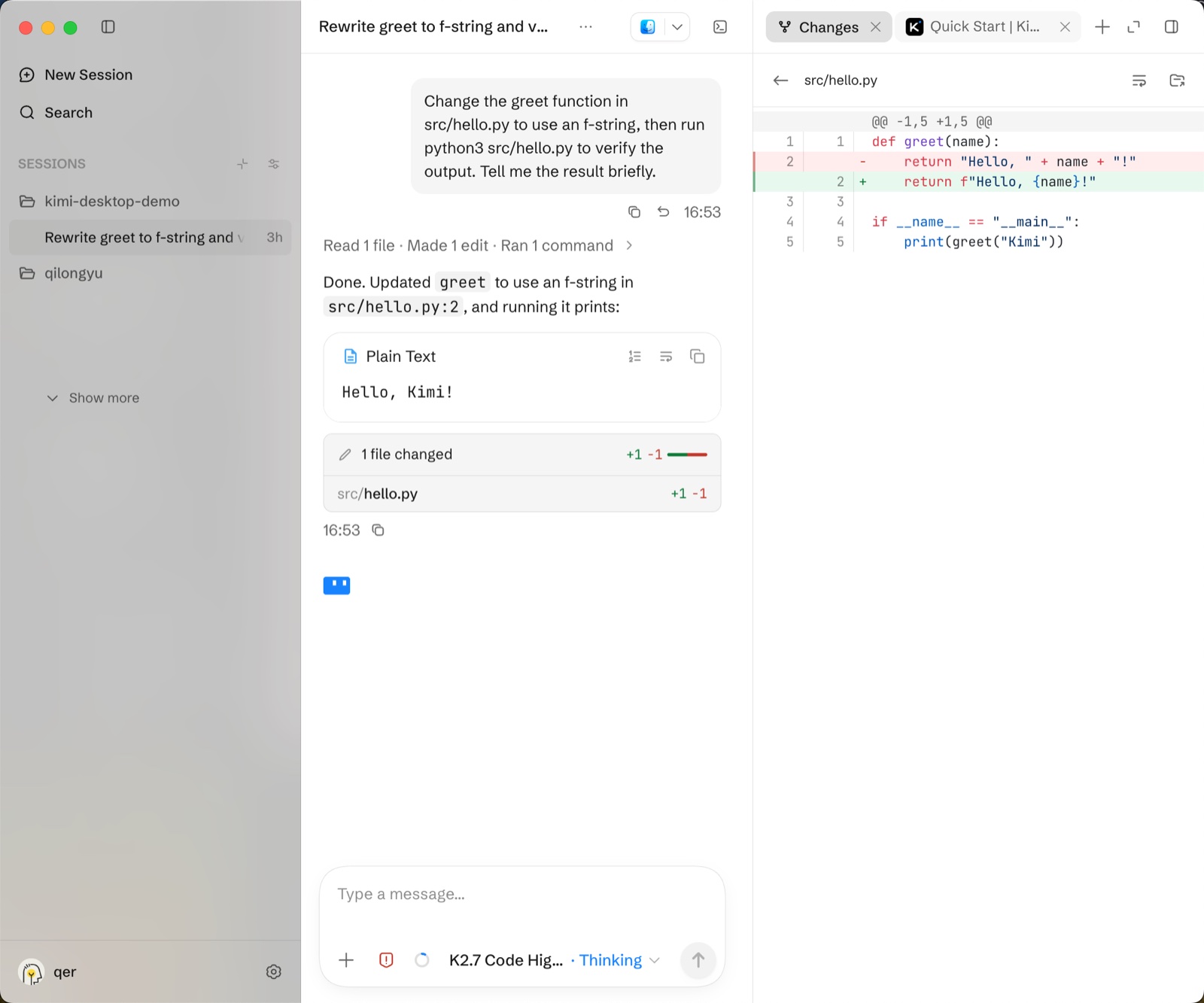
After a change, confirm which files were modified and what each change looks like.
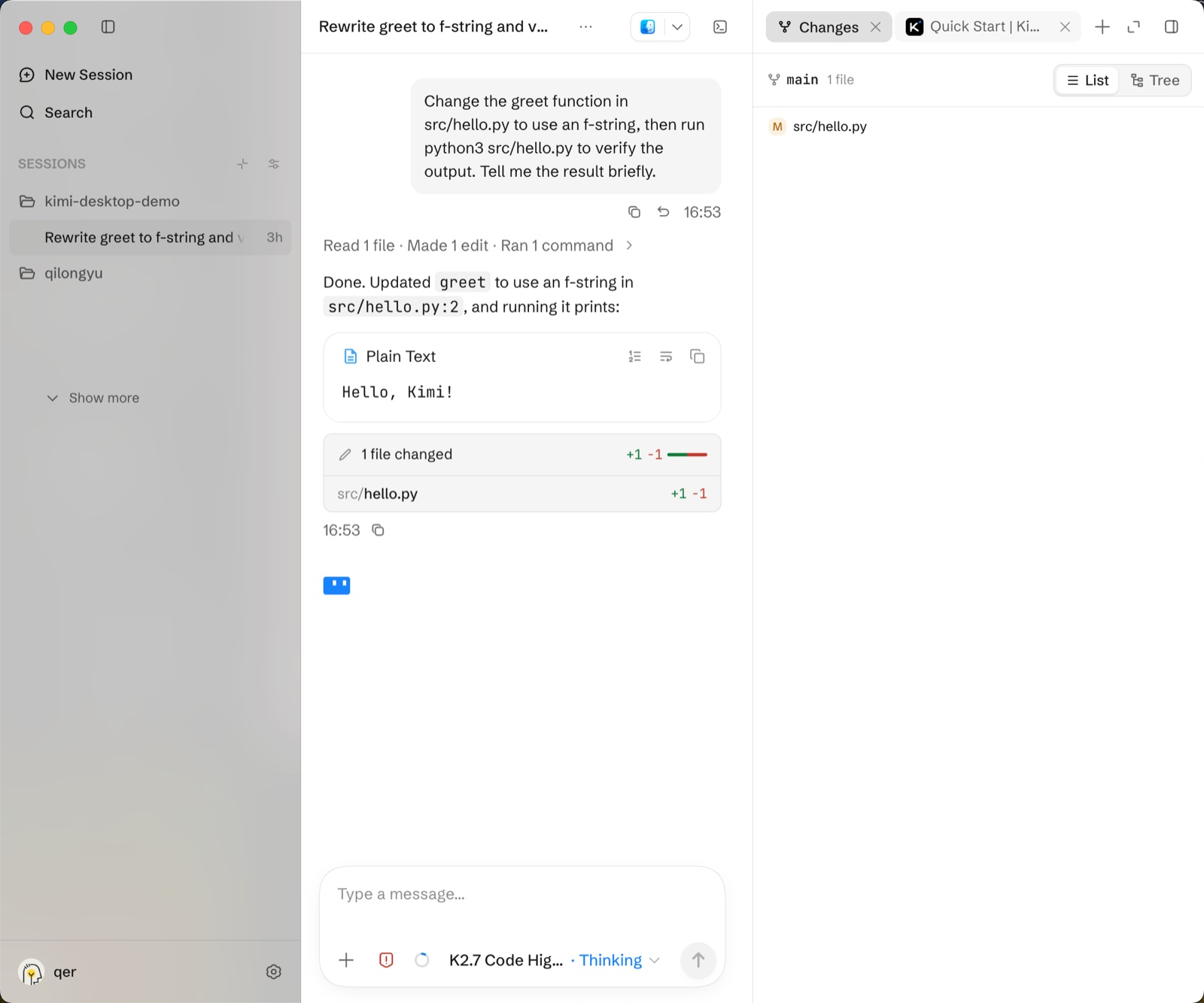
- Changes: The Changes tab in the right panel lists every change by file. Inspect an individual file or the changes from a single turn. The Changes tab is a singleton, so the new-tab menu hides it when one is already open.
- Git status: The top of the Changes panel shows the current branch, ahead/behind status, and the number of changed files, and can also show pull request status.
- File Preview: Preview Markdown, JSON, HTML, PDF, CSV, images, and code or text files, with actions to copy, download, reveal in the system, and open in an external app. Markdown files with frontmatter show a metadata card. File paths mentioned in the conversation can also be clicked open directly.
Verify in the terminal
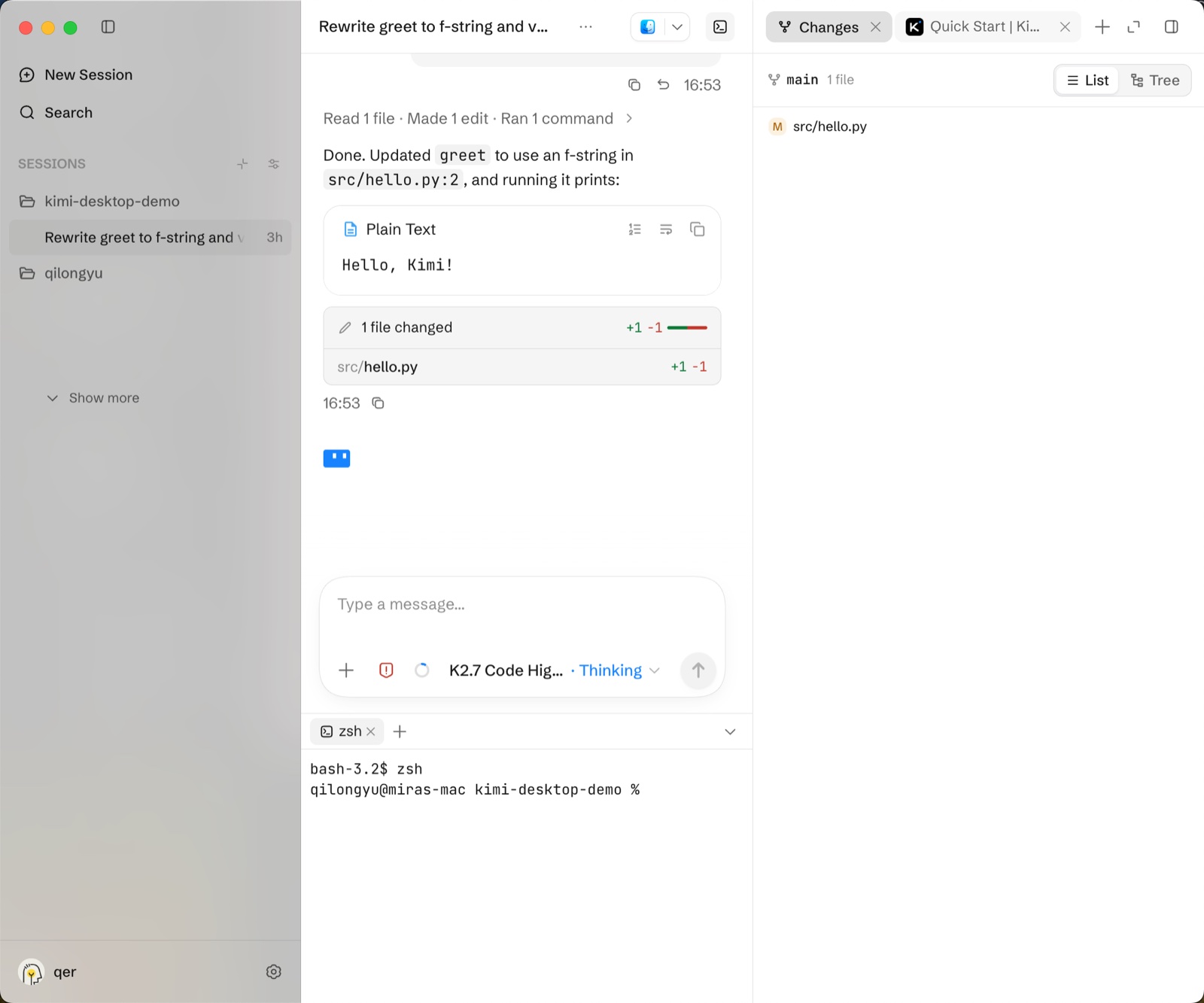
If the result needs verification, both terminal and web page options are available. The bottom terminal panel is the native desktop terminal. Open it from the terminal button in the upper-right corner of the session. It supports multiple tabs and runs commands with the current workspace as its cwd. Use it for the project's existing build, test, formatting, and other verification commands, or to inspect Git command output.
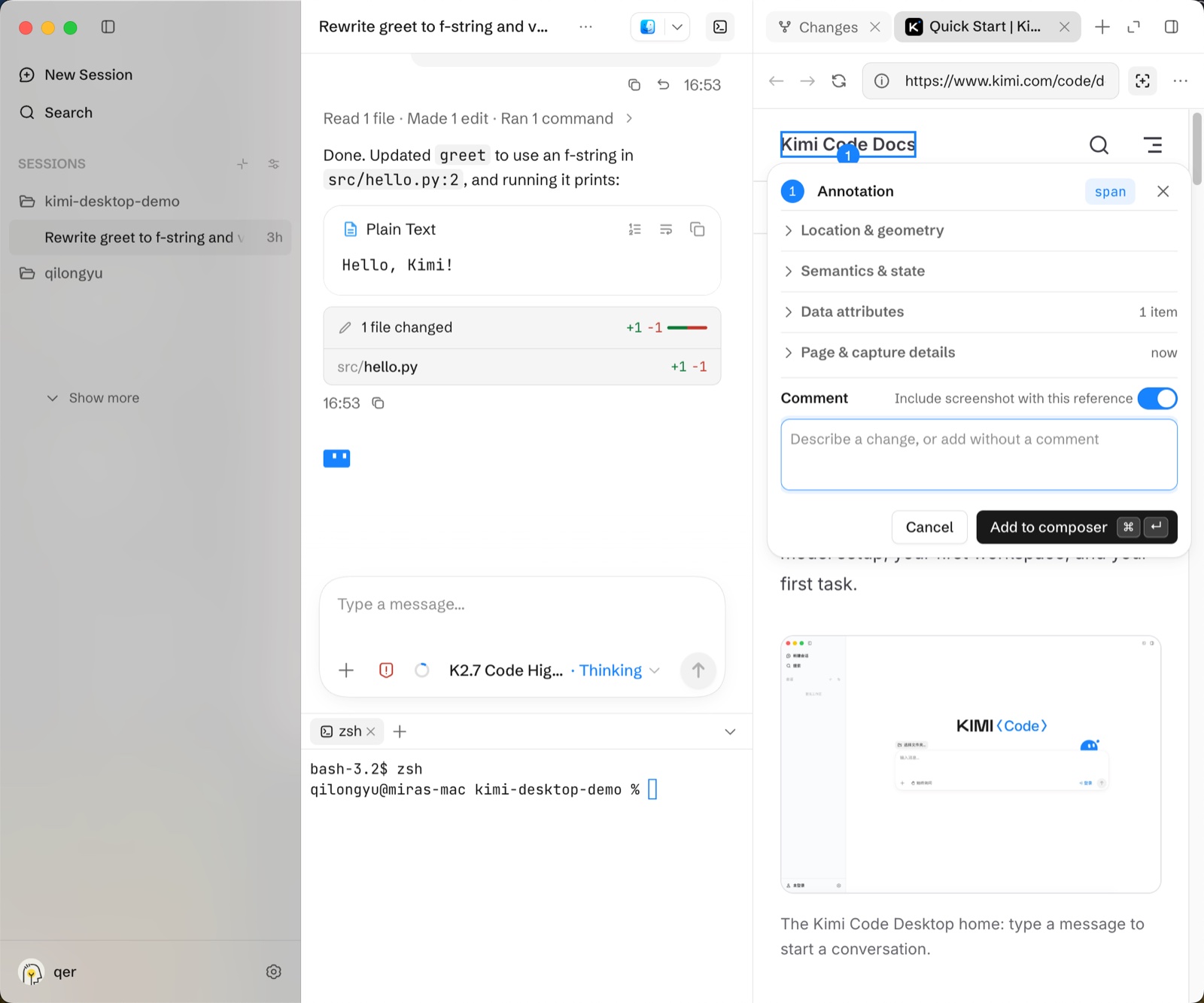
To verify web pages, open the built-in browser in the right panel: browser tabs stay with the session and share page context with the Agent, so you can check pages without switching to another window. You can also annotate elements or regions on the page—each annotation captures the element's details along with a screenshot and your comment, so the Agent knows exactly what to change.
Manage background tasks
The desktop app can run background tasks while the main session continues. The work bar above the Composer shows running background work such as background Bash and background Agents, with status and counts. Expand it to see the task list (filter by recent, running, completed, or all), where you can:
- Check the status, output, and runtime of background Bash and tool tasks.
- See a background Agent's model, thinking effort, status, and result.
- Open the details of a task or subagent — a background Agent opens a task tab in the right panel with its execution summary, thinking, and tool calls.
- Stop a running task.
Background tasks and background Agents are two kinds of work: the former shows command and tool execution, the latter shows a subagent's independent work.
Manage projects and sessions
Desktop organizes sessions by workspace, and a workspace maps to a local project folder. Sessions in a workspace can be created, switched, renamed, archived, restored, deleted, forked, exported, pinned, and searched. Multiple sessions can stay open in parallel tabs, with batch management for cleanup, and global search finds sessions across workspaces. A title is generated after the first turn and can be regenerated from the session item.
Forking keeps the current session while you try another direction; archiving, search, restore, and export help manage session history.
Use external apps
File Preview is used to preview files and copy, download, reveal in the system, or open in an external app. The top menu opens the current project or file in an external app, including VS Code, Cursor, Zed, Xcode, the system terminal, or system file managers such as Finder or Explorer. It can also copy the current path.
Extend with plugins
Plugins bring specific tools, workflows, or external services into the desktop app. In the Plugins area of Settings, you can browse the marketplace and install, enable, update, or remove plugins, or add custom plugin sources.
The official extensions currently available include:
- Kimi Computer Use: lets the Agent operate apps and interfaces on this Mac.
- Kimi Browser Extension: lets the Agent drive your real browser with your existing sign-in state; if the browser extension is missing, the Plugins area provides the Chrome or Edge extension installer.
- Kimi Datasource: gives the Agent data-query and datasource capabilities for tasks that need external data.
For how plugins are added, the marketplace, and custom sources, see Plugins.
Adjust settings
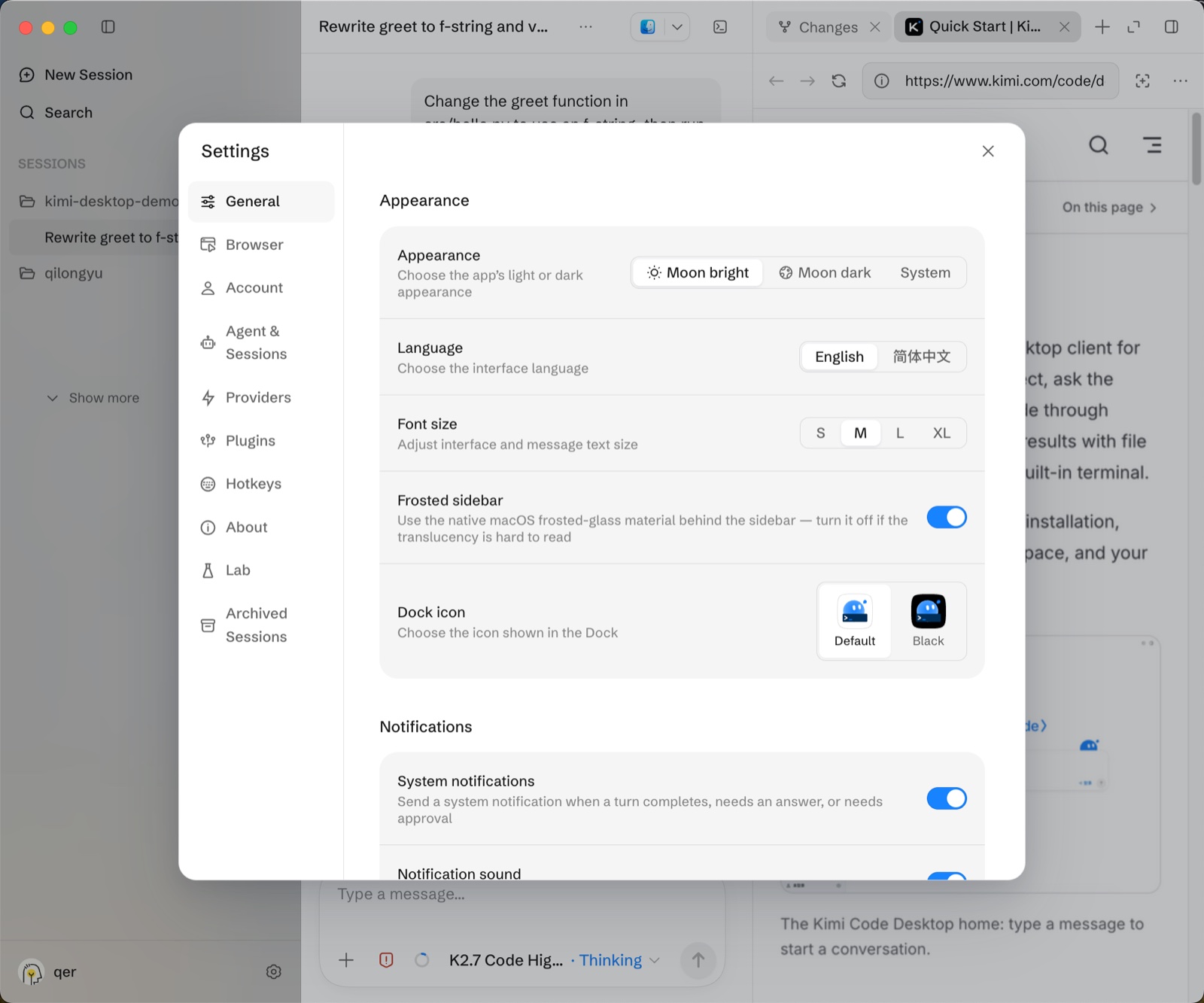
The Settings panel includes General, Account, Agents & Sessions, Providers, Plugins, Shortcuts, About, Lab, and Archived Sessions. It is used to manage models, providers, message folding, account, permissions, shortcuts, agreement links, and experimental options.
Continue with Quick Start for the shortest path through the first session.