Kimi Claw file transfer
Kimi Claw supports sending and receiving files. You can transfer files through chats, Workspace, Feishu bots, and more.
Send files to Kimi Claw
You can send images, files, and other content to Kimi Claw in a chat. Kimi Claw will use tools to view and process them.
Supported file types include common formats such as images, PDF, Word, and Excel.
Kimi Claw sends files to you
The latest version of Kimi Claw can now send files to you. If your Kimi Claw cannot send files, go to “Settings” and update the plugin to the latest version.
Manage files through Workspace
On the web (kimi.com/bot), click “Workspace” (the 📂 icon) in the upper-right corner to browse and download all files generated by Kimi Claw.
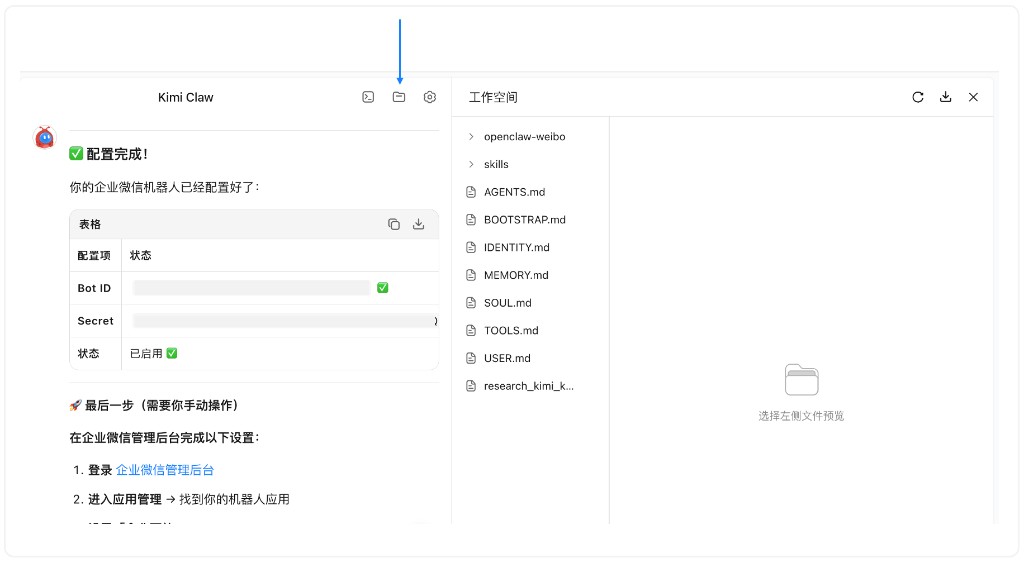
File management is now available on iOS / Android. If you don’t see it, go to the app store and update the Kimi app to the latest version.
Get files through a Feishu bot
If you have configured a Feishu bot, you can also retrieve files generated by Kimi Claw through a Feishu chat. In Feishu, simply tell the bot "Send me the file you just generated", and the bot will send the file to you in a Feishu message.
Can’t download output files?
File viewing is now available on the web (kimi.com/bot). Use the “Workspace” entry (the 📂 icon) in the upper-right corner to download the files you need.
Was this article helpful?